Your Network Doesn’t Have to Look Like Cisco’s Budget
You’ve got three VMs running on your home lab. Sometimes they talk to each other. Sometimes it takes forever. You look at your 1Gb pipe and think: I could get 10 gigabits. Then you check the price of new Cisco gear and go back to drinking your coffee in defeat.
Used enterprise SFP+ equipment is dirt cheap. And I mean dirt cheap. Like, “what was Cisco thinking charging that much” cheap.
This is the guide to getting 10GbE for the cost of a decent lunch, not a car payment.
Why Bother with 10GbE?
Fair question. 1Gb runs most home labs fine. Backups feel slow. VM migrations take a minute. Your Proxmox cluster pulls 4 Gbps aggregate during a backup and everyone notices. Your NAS bottlenecks at 125 MB/s.
2.5GbE and 10GbE fix this. 10GbE gives you 1.25 GB/s theoretical max. Backups finish in seconds. Migrations don’t stutter. You stop noticing the network, which is the entire point.
The catch? New hardware is insane. A single 10GbE NIC from Intel or Mellanox costs $300 to $500. A managed switch with 10GbE ports runs $1500+. You need two NICs, a switch, cables. We’re at $3500 before you’ve moved a single byte.
The solution is stupidly simple: everyone upgraded to 25GbE and 100GbE. They dumped their 10GbE stuff on eBay.
The Budget Path: Used SFP+ Everything
SFP+ (Small Form-factor Pluggable Plus) is the connector standard from 2010 onward. It’s beautiful because:
- Used markets are flooded: everyone threw this stuff out
- It’s not going anywhere: 10GbE over SFP+ is an old standard, prices have bottomed out
- DAC cables cost $5 to $15: Direct Attach Copper. Just wires in a fancy jacket. Beats fiber optics by a country mile for home lab
- NICs are $30 to $80: Mellanox ConnectX-3/4 cards, Intel X520/X710 adapters, all pulling in from corporate refurb shops
You can wire up a 10GbE network for under $300. Let me show you how.
Part 1: The NICs (Mellanox vs Intel)
Your first buy. You need at least two 10GbE cards: one for the server, one for the switch or another box.
Mellanox ConnectX-3 and ConnectX-4
The king of the budget pile. Mellanox made these dual-port SFP+ cards from 2012 to 2018. They work everywhere:
- Linux loves them. Just modprobe mlx4_core, they show up.
- Proxmox: native driver
- ESXi: official support up to 6.7 (includes drivers on the disc)
- Windows: drivers exist, though why you’d do this in a home lab is a mystery
ConnectX-3 (2012 to 2015): 10GbE dual-port. $20 to $40 used. Draws 5W. Perfectly fine for home lab.
ConnectX-4 (2016 to 2018): Same speed, lower power, better firmware tooling. $40 to $70 used. The one to grab if you’re buying new in the used market.
Buy: One dual-port card gives you 2x 10GbE. For a small setup (server + switch), that’s enough. Grab two if you’re wiring multiple boxes.
Intel X520 and X710
Intel’s answer. Slightly more power draw, identical performance, same $30 to $80 price used.
X520 (2012 to 2015): Dual 10GbE SFP+. Older firmware, still works.
X710 (2016 to 2018): Four SFP+ or mixed SFP+/RJ45. More ports, slightly nicer if you’re doing fiber (but we’re not).
Honest take: For home lab, Mellanox is the easier choice. Linux driver support is cleaner. But if you find a cheap X520 first, don’t sweat it. Both work.
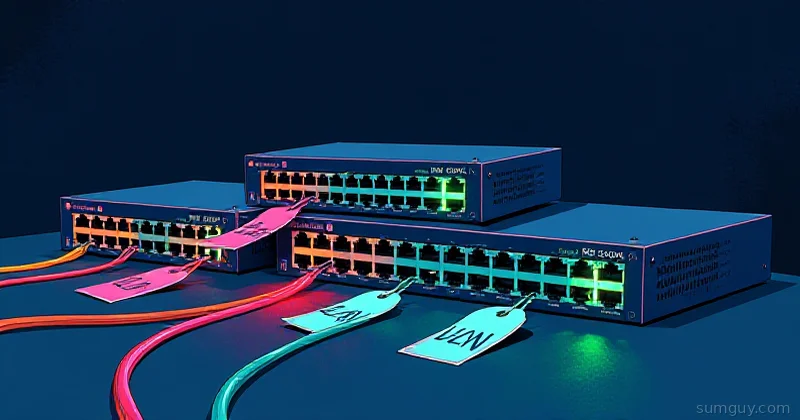
Part 2: The Switch (MikroTik CRS305)
Here’s where budget really shines. MikroTik makes the CRS305-1G-4S+IN, a compact fanless desktop switch with four SFP+ ports. You can snag used ones for $200 to $350.
Specs:
- 4x SFP+ (10GbE)
- 1x 1GbE management port (RJ45)
- Compact desktop footprint, no rack ears
- RouterOS or SwOS (both free)
- Fanless or near-silent (the spec matters if it’s in your bedroom)
Setup takes 15 minutes:
- Plug it in.
- SSH to it.
- Run three commands:
/interface bridge add name=br-main/interface bridge port add interface=ether1 bridge=br-main/interface bridge port add interface=sfp-sfpplus1 bridge=br-main/interface bridge port add interface=sfp-sfpplus2 bridge=br-main/interface bridge port add interface=sfp-sfpplus3 bridge=br-main/interface bridge port add interface=sfp-sfpplus4 bridge=br-main/ip address add address=10.0.0.254/24 interface=br-mainIt’s now a dumb layer-2 switch. Everything plugged into SFP+ ports sees every other SFP+ port at line rate. Done.
Alternative: MokerLink makes smaller fanless 10GbE switches ($150 to $250 used). Same idea. Both work.
Part 3: The Cabling (DAC is Your Friend)
Here’s where most people get confused. Two options:
- DAC (Direct Attach Copper): two SFP+ modules connected by a copper cable
- Fiber (SR/LR): two SFP+ transceiver modules with a fiber optic cable between them
For home lab? DAC. 100% of the time.
Why:
- DAC: $5 to $15 per cable. Buy three, you’re at $45.
- Fiber transceivers: $50 to $150 each. Two transceivers per cable. Add $150 for the cable. You’re at $200+ before you blink.
- Distance: DAC works up to 10 meters. Your home lab is probably 5 meters away from the switch, tops.
- No opto-electrical conversion loss. Fiber is lower-latency in theory, but your 10-meter DAC cable adds nanoseconds, not milliseconds.
Buy SFP+ DAC cables rated for 10GbE. Passive (just wires) is fine. Grab them from:
- eBay: search “SFP+ DAC 10GbE 3m”, $8 to $12
- AliExpress: $5 to $10, ships in 2 weeks
- AWS Warehouse Deals: $6 to $10, faster
Test before you commit to production. Any 10GbE-rated DAC will work with any SFP+ port.
Part 4: Putting It Together
You’ve got:
- One Mellanox ConnectX-3/4 (2x 10GbE SFP+): $40
- One MikroTik CRS305 switch (4x 10GbE SFP+): $300
- Three SFP+ DAC cables (3m each): $30
- One server with a spare PCIe slot: free
- One or two other boxes to talk to: free
Total: ~$370. (or $200 if you skip the spare NIC and only wire one box to the switch for now)
Installation
- Power off the server.
- Pop the NIC into a spare x8 or x16 slot (the card is x16, but x8 is fine for 10GbE).
- Boot up. Linux sees it immediately.
- Load the driver (usually automatic):
modprobe mlx4_coreip link show # see ens5f0 and ens5f1 (or similar)- Assign an IP on a new subnet:
ip addr add 10.0.0.1/24 dev ens5f0ip link set dev ens5f0 up- Plug one DAC cable from ens5f0 to sfp-sfpplus1 on the switch.
- Plug the other box’s NIC into sfp-sfpplus2.
- Test:
iperf3 -s # on the serveriperf3 -c 10.0.0.1 # on the other boxYou should see ~9.4 Gbps. Real-world transfers run 8 to 9 Gbps after protocol overhead.
Real-World Benchmarks
Here’s what 10GbE actually looks like in practice:
rsync of 50 GB VM backup (ext4 filesystem, no encryption):
- 1Gb network: 6 minutes
- 10GbE: 45 seconds
Proxmox live migration of a running VM (32 GB RAM):
- 1Gb: ~2 minutes, guests notice latency spikes
- 10GbE: 15 seconds, guest sees a 200ms pause, resume
NAS to server copy (1000 large files, 100 GB total):
- 1Gb: sustained 120 MB/s
- 10GbE: sustained 900 MB/s
The difference is not subtle. Once you feel it, 1Gb feels like dial-up.
When 2.5GbE Is Enough
If 10GbE feels like overkill (smart), 2.5GbE is the middle ground:
- Costs the same as 10GbE hardware (used market overlap)
- 2.5x faster than 1Gb
- Easier on power, generates less heat
- Some MikroTik switches have 2.5GbE RJ45 ports (CRS310-8G+2S+IN)
Same DAC + NIC logic applies. The only catch: fewer 2.5GbE NICs exist in the used market. You’ll find 10GbE cheaper.
The Catches (There Are Always Catches)
1. Linux driver updates Mellanox’s mlx4/mlx5 drivers are stable but slow to update. If you’re on bleeding-edge kernels (Arch, Fedora Rawhide), test in a VM first. Most home labs run LTS (Ubuntu, Proxmox), so you’re fine.
2. Firmware compatibility Some very old ConnectX-3 cards ship with firmware from 2012. Modern UEFI can be finicky. Flash the card to the latest firmware (Mellanox has a tool). Takes 10 minutes, fixes 95% of weird issues.
3. PCIe x8 vs x16 Your NIC will work in an x8 slot, but it’ll negotiate at x8 speeds. No performance hit (10GbE doesn’t saturate x8), just leaves the option open. Slot 1 on most boards is x16. Slots 2-4 are often x8 or even x4 (check your motherboard manual).
4. Power hungry These NICs draw 5 to 8W sustained. Not earth-shattering, but keep it in mind if you’re trying to hit 30W total.
5. Used markets are flaky
Not all sellers test before shipping. eBay return policy saves you. AliExpress is a gamble. Test immediately when it arrives: if the card doesn’t show up in lspci, you’ve got a problem. Return it.
Decision Tree: Should You Do This?
Yes, if:
- You run Proxmox, ESXi, or KVM with VMs that migrate
- You have a NAS and copy large files regularly
- You do backups over network (daily, >1 TB)
- You’re running multiple services and networking feels like a choke point
Maybe, if:
- You’ve got a single server and two external storage boxes
- You’re curious and have $300 to experiment
- You like the challenge of wiring up infrastructure
No, if:
- You’re on a budget tighter than $300
- Everything works fine now (seriously, don’t fix what isn’t broken)
- You hate troubleshooting hardware
The One Thing to Get Right
Buy the DAC cables before the switch. Test one DAC between two NICs on the same server:
# Server, port 1ip addr add 10.0.0.1/24 dev ens5f0ip link set dev ens5f0 up
# Server, port 2ip addr add 10.0.0.2/24 dev ens5f1
# Loopback testping 10.0.0.2iperf3 -c 10.0.0.2
If you get 10 Gbps sustained, the rest is just wiring.
If you get 1 Gbps, the DAC is bad. RMA it. Buy from a different seller.
If you get nothing, the NIC is dead or the driver isn’t loaded. That’s rare but happens. Also RMA it.
This 10-minute sanity check saves you hours of blaming the switch later.
Ship It
You now have a 10GbE network for less than most people pay for a decent monitor. Your backups run in seconds. Your VMs migrate without hiccup. Your NAS doesn’t bottleneck anymore.
And your home lab officially looks cooler at parties. (It doesn’t, but you’ll feel cooler, which is what matters.)
Full example: No working code repo for this one, it’s hardware pickup + three commands in the MikroTik shell. If you want a reference rig config, ping me on the Fediverse or slide into the GitHub Issues on sumguy-examples.
Further reading: