GeForce Now Is Great, Until It Isn’t
GeForce Now is impressive. The Ultimate tier puts you on RTX 5080-class hardware for $19.99/month and streams to whatever potato is in front of you. The catch? You’re renting someone else’s GPU, waiting in queues, getting booted after 8-hour sessions, and praying your game of choice actually makes it into their library. Since January 2026 there’s also a 100-hour monthly playtime cap on the paid tiers, with up to 15 hours of rollover and paid blocks after that. Also: Ubisoft pulled their games that one time and everyone collectively lost their minds, rightfully so.
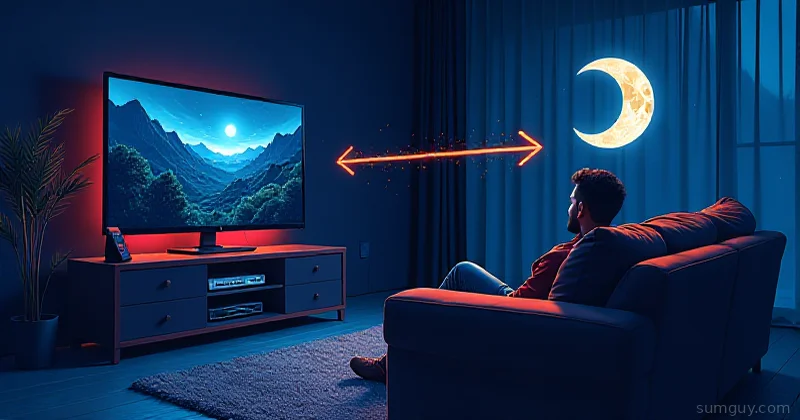
If you already have a capable gaming PC sitting in your office or basement, you have everything you need to build a better cloud gaming setup than GeForce Now. No monthly bill. No queue. No library restrictions. Your saves, your mods, your resolution settings, your hardware. Sunshine + Moonlight is the combo that makes this real, and it’s shockingly good.
Related reading: Cloud Gaming 2026: Who’s Still Standing and GeForce Now: Cloud Gaming Done Right, those cover the SaaS options. This one is about ditching them entirely.
What Even Is Sunshine?
Sunshine is an open-source, self-hosted game streaming server that’s compatible with Moonlight clients. It’s essentially a drop-in replacement for NVIDIA GameStream (which NVIDIA killed in 2023 (thanks, guys)). Moonlight is the client app, available on Android, iOS, tvOS, Windows, macOS, Linux, Raspberry Pi, and basically anything with a screen and enough processing power to decode H.264.
The stack looks like this:
- Sunshine runs on your gaming PC (the host), captures frames, encodes them using your GPU, and streams over the network
- Moonlight runs on your thin client: Steam Deck, laptop, TV box, tablet, whatever, and decodes the stream
The protocol underneath is NVIDIA’s GameStream protocol, which Moonlight reverse-engineered. It uses UDP for low latency, supports hardware decode on the client side, and can punch through most NAT situations with a bit of help.
Installing Sunshine
Linux (The Fun Way)
Sunshine on Linux supports NVENC (NVIDIA), VAAPI (AMD and Intel), and software encoding (slow, don’t use it for gaming).
# Grab the latest release from GitHubwget https://github.com/LizardByte/Sunshine/releases/latest/download/sunshine-linux-deb.deb
# Install itsudo dpkg -i sunshine-linux-deb.debsudo apt-get install -f  # fix any dependency issues
After install, the web UI runs at https://localhost:47990. First time you visit, it’ll complain about a self-signed cert, click through it, it’s fine on your local network.
For NVIDIA users, NVENC just works once you have the proprietary driver installed. For AMD, you need VAAPI:
# AMD VAAPI prerequisitessudo apt install mesa-va-drivers vainfo
# Verify VAAPI is workingvainfo# Look for: VAProfileH264* and VAEntrypointEncSlice
For Intel Quick Sync Video (QSV), it’s the same VAAPI path, just make sure you have intel-media-va-driver installed and i915 loaded.
Then configure the encoder in Sunshine’s web UI under Configuration > Encoding:
- NVIDIA: set encoder to
nvenc - AMD/Intel: set encoder to
vaapi - Codec:
h265if your client supports it (most do),av1if both ends are high-end enough
Windows (The Easy Way)
Download the installer from LizardByte’s GitHub releases, run it, done. It auto-detects NVENC, AMD AMF, and Intel QSV. The web UI is the same.
One important thing on Windows: run Sunshine as a service, not as a regular app. The installer sets this up automatically. If it’s not running as a service, you can’t stream the login screen or UAC prompts, which gets annoying fast.
Sunshine Configuration
The config file lives at ~/.config/sunshine/sunshine.conf on Linux or %APPDATA%\Sunshine\sunshine.conf on Windows. Most settings are better managed through the web UI, but a few worth knowing:
# Encoder settingsencoder = nvenc         # or vaapi for AMD/Intelcodec = hevc            # h264, hevc, or av1
# Stream qualityfps = [30, 60, 90, 120]resolutions = [1920x1080, 2560x1440, 3840x2160]
# Networkport = 47989            # base port; all other ports are offset from this
HDR support is real but temperamental. If you want 4K HDR, you need:
- A display connected to the host (or a virtual display: more on that in a minute)
- HDR enabled on that display in Windows HDR settings
- Sunshine configured with HDR enabled
- A client device that actually supports HDR decode (Apple TV 4K, Shield TV, etc.)
In practice, for LAN gaming at 4K120, NVENC H.265 at 80-100 Mbps bitrate looks indistinguishable from local play. Your 2 AM self will appreciate not having to move to the couch.
Connecting with Moonlight
Moonlight is dead simple. Install it on your client device, and it’ll auto-discover Sunshine hosts on the local network via mDNS. Click the host, enter the PIN that pops up on the Sunshine web UI, and you’re streaming.
For clients:
- Steam Deck: Flatpak from the Discover store,
com.moonlight_stream.Moonlight - Android/iOS: App store, it’s free
- Raspberry Pi:
sudo apt install moonlight-qton Raspbian
Moonlight’s settings to tune first:
- Resolution/FPS: match your host display or go higher if you have the bandwidth
- Bitrate: 40 Mbps is a good starting point for 1080p60, bump to 80+ for 1440p, 150+ for 4K
- Video codec: HEVC if supported, otherwise H.264
- On-screen stats: enable them initially to watch for dropped frames and latency
Tailscale for Remote Streaming
LAN streaming is great. Remote streaming from a coffee shop is where it gets spicy.
The naive approach is port forwarding, open Sunshine’s ports (TCP 47984/47989/48010 plus UDP 47998-48000) on your router. It works, but you’re exposing your streaming server to the internet and dealing with CGNAT if your ISP is being annoying. The better approach is Tailscale.
# Install Tailscale on both host and clientcurl -fsSL https://tailscale.com/install.sh | shsudo tailscale up
# Verify both devices are on your tailnettailscale status
Once both machines are on your Tailscale network, Moonlight can connect directly using the Tailscale IP (the 100.x.x.x address). No port forwarding required. Tailscale handles the hole-punching.
For performance, keep an eye on your Tailscale MTU. When traffic gets relayed (DERP) instead of direct, the path MTU drops and UDP fragmentation can tank your stream quality. There’s no first-class CLI flag to set it, so check the interface and, if you need to override it, set it on the interface directly:
# On the host side, check current MTUip link show tailscale0
# If you need to override it, set it on the interface (won't persist a reboot)sudo ip link set tailscale0 mtu 1280
Also worth doing: set up Tailscale’s subnet router on your gaming PC so Moonlight can reach the Tailscale IP even when you’re using a mobile client that might not have Tailscale installed. Or just install Tailscale everywhere, it’s free for personal use.
Running your own Headscale server instead of Tailscale’s coordination server? Same thing, just point your Tailscale clients at your Headscale instance with tailscale up --login-server=https://your-headscale.example.com. Works identically.
The Virtual Display Trick
Here’s a scenario: your gaming PC is in the basement headless, no monitor plugged in. Sunshine needs an actual display (or virtual display) to capture from, otherwise you get a black screen or it falls back to CPU capture.
On Windows, the easiest solution is a headless HDMI dummy plug (a $5 dongle on Amazon that pretends to be a monitor). Plug it in, Windows thinks it has a display, Sunshine captures it. Done.
On Linux with NVIDIA, you can create a virtual display without any hardware:
# Create a virtual display using the NVIDIA virtual display driversudo nvidia-xconfig --virtual=1920x1080
# Or use xrandr to add a virtual modexrandr --addmode VIRTUAL1 1920x1080xrandr --output VIRTUAL1 --mode 1920x1080
The more modern approach on Linux is to use KMS virtual displays via xrandr --setprovideroutputsource or, if you’re on Wayland, the xdg-desktop-portal capture path. Sunshine supports both X11 and Wayland capture, just make sure you set capture = kms in sunshine.conf on Wayland.
Multi-monitor works too: if your gaming PC has two displays, Sunshine can stream either of them. Set the capture display in the web UI under Configuration > Audio/Video.
Non-Steam Games: apps.json
By default, Sunshine shows you a “Desktop” option which streams your whole desktop. That works, but Moonlight’s game launcher UI is much cleaner when you define your games explicitly.
Sunshine’s app list is managed via apps.json (editable from the web UI under Applications). Here’s a snippet:
{ "apps": [ { "name": "Steam", "image-path": "steam.png", "cmd": "steam steam://open/bigpicture", "detached": ["steam"], "wait-all": true, "exit-timeout": 5 }, { "name": "GOG Galaxy", "image-path": "gog.png", "cmd": "C:\\Program Files (x86)\\GOG Galaxy\\GalaxyClient.exe" }, { "name": "Heroic Launcher", "image-path": "heroic.png", "cmd": "/usr/bin/heroic" } ]}The detached field is useful for Steam specifically: Steam launches a child process and the parent exits, so Sunshine needs to know to keep tracking the child. Without it, Sunshine thinks Steam quit immediately and kills the stream.
For games that require the launchers to die before they close (looking at you, Rockstar Games Launcher), the exit-timeout gives them time to clean up before Sunshine ends the session.
Wake-on-LAN: Turn It On From the Couch
Your gaming PC doesn’t need to be running 24/7. Set up Wake-on-LAN and you can boot it from Moonlight before you sit down.
On Linux:
# Check if your NIC supports WoLsudo ethtool eth0 | grep Wake-on
# Enable WoL on the interfacesudo ethtool -s eth0 wol g
# Make it persist across reboots (systemd)sudo tee /etc/systemd/network/10-eth0.link > /dev/null <<'EOF'[Match]MACAddress=aa:bb:cc:dd:ee:ff
[Link]WakeOnLan=magicEOF
On Windows, enable WoL in Device Manager under your NIC’s Power Management tab, and in your BIOS under Power Management > Wake on LAN.
Sunshine has WoL support built in. You can configure it in the web UI under Configuration > General, and Moonlight will show a wake button when the host is offline. You do need the Sunshine host info cached from a previous connection, and the client needs to be on the same subnet (or you need a UDP broadcast relay for remote WoL).
Sunshine vs. Steam Remote Play vs. Parsec
Quick comparison since you’re probably wondering:
| Feature | Sunshine/Moonlight | Steam Remote Play | Parsec |
|---|---|---|---|
| Cost | Free | Free | Free (pro plan for features) |
| Non-Steam games | Full support | Steam only | Full support |
| Protocol | NVIDIA GameStream | Steam’s own | Parsec’s own |
| Latency | Excellent | Good | Excellent |
| 4K HDR | Yes | Limited | Yes (premium) |
| Linux host | Yes (VAAPI) | Yes | Partial |
| Mobile client | Yes | iOS/Android | Yes |
| Open source | Yes | No | No |
Steam Remote Play is convenient if all your games are on Steam and you just want something that works with zero config. The moment you want to launch a GOG game or have non-Steam stuff in your library, it falls apart.
Parsec is a solid commercial option, but the free tier caps you and the good stuff costs money. Plus it’s not open source, you’re trusting their servers for the relay. Sunshine + Moonlight keeps everything on your infrastructure.
Honestly, if you have a homelab and a gaming PC already, there’s no reason not to run Sunshine. The setup is maybe 20 minutes, and the result is a streaming setup that GeForce Now legitimately can’t match on your own game library.
Troubleshooting the Common Pain Points
Audio not working on headless Windows host: Install VB-Audio Virtual Cable or the Sunshine companion app sunshinestreamer which handles audio routing. The issue is Windows routes audio to the “default” device, which might not exist if you’re headless. Virtual audio cables fix this by always giving Windows somewhere to route audio.
High latency spikes: Almost always a Wi-Fi issue on either end. Sunshine + Moonlight on gigabit LAN is consistently sub-10ms. On Wi-Fi, interference or channel congestion causes bursts. Use 5GHz, enable WMM (Wi-Fi Multimedia) QoS on your router, and consider a dedicated SSID for streaming if you have the gear.
Black screen on stream start: Check that Sunshine has permission to capture the display. On Linux, you might need to run it with the right user or add it to the video group. On Windows, make sure it’s running as SYSTEM (the service mode handles this).
Stream freezes when HDR changes: Known issue. Windows HDR transitions cause a brief encoder reset. Disable auto-HDR and manage HDR mode manually, or just leave HDR always on if your display supports it.
The Bottom Line
You paid for that GPU. You might as well stream from it. Sunshine + Moonlight gives you everything GeForce Now does for the games you already own, at better quality, with no queue, no monthly fee, and full control. The setup is approachable even if you’ve never run a self-hosted service before, if you can follow a README and open a browser tab, you can have this running in an afternoon.
The only thing cloud gaming services have on you is the hardware itself. If you already have the hardware, there’s no competition.