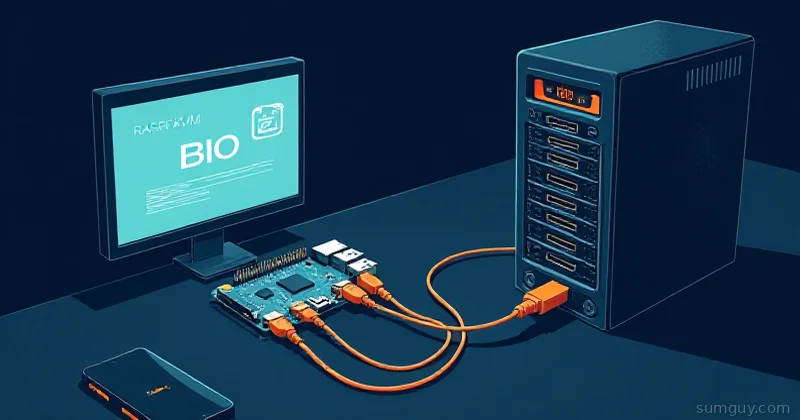
PiKVM wins if you want the most polished plug-and-play experience, and JetKVM wins the moment budget and simplicity matter more than community support.
You’re sitting at your desk. The home lab is down the hallway. Something’s broken in the BIOS. You need to get in now, but you’re 100 miles away. Welcome to the KVM-over-IP problem.
If your server doesn’t have IPMI (and most homelabs don’t), you’re stuck. No remote console, no BIOS access, no rescue boot. You either drive back or hope you can SSH in before things got worse. That’s when people discover PiKVM, JetKVM, and the DIY rabbit hole. Each solves the problem differently, and which one you pick depends on whether you value simplicity, cost, or control.
Let’s cut through the marketing.
PiKVM, JetKVM, or DIY: Which KVM-over-IP Should You Build?
- Pick PiKVM if you want it to just work, don’t mind paying a bit more, and value the biggest community.
- Pick JetKVM if you want the cheapest serious appliance at $69 and 1080p60 is enough.
- Pick DIY if you have spare parts, time to burn, and enjoy the tinkering.
What You’re Actually Trying to Solve
Remote management without IPMI means you need:
- BIOS/UEFI access: Can’t SSH into a box that won’t boot.
- Video capture: Not just terminal output; full display streaming.
- Keyboard/mouse injection: Type commands as if you’re there.
- Low latency: Sub-500ms is acceptable; 2-3 seconds feels broken.
- Reliability: It only matters when things are on fire.
IPMI does all this in enterprise gear. For the rest of us, we’re bolting on hardware to a server that wasn’t designed for remote management. That hardware sits between the server’s USB ports and keyboard/mouse/HDMI, capturing everything and streaming it to you.
It’s like installing a dash cam and cellular modem in your car so you can see what’s happening on the road while you’re home. It works, but you’re not the intended customer.
PiKVM: The Pre-Built Plug-and-Play Route
What it is: A Raspberry Pi 4/5 with purpose-built firmware, a custom PCB, and a community behind it. You buy the board, plug in HDMI and USB, and get a web console.
Hardware cost: $150 to 250 depending on Pi generation and which board variant you choose.
The pitch:
- Designed specifically for this job.
- Web-based UI (no client software).
- Active community, regular updates.
- Can record video streams.
- GPIO support for power management (boot/shutdown automation).
How it works:
- The HDMI input goes to the Pi’s video decode chip.
- USB capture (keyboard/mouse injection) uses a FTDI chip or custom USB hub.
- Firmware runs Kvmd, a daemon that handles video encoding and control.
- You access it via web browser at
http://<pikvm-ip>:8080.
The reality check:
PiKVM is the “right” answer if you don’t want to troubleshoot. You plug it in, point it at your server’s ports, and it works. Firmware updates are straightforward. The community has tackled most edge cases. If something breaks, there’s a Subreddit with answers.
But: Raspberry Pi supply issues are real. A Pi 5 is $60+, the V3 HAT adds $50+, and you still need a case, SD card, and power supply. You’re really at $200+ before you’re done. For that price, you’re close to buying off-the-shelf.
Also, HDMI capture over a Pi’s USB 3.0 connection has limits. If you’re getting video glitches or encoding lag, you’re hitting the thermal ceiling. A Pi 4 can struggle at 1080p@60Hz under sustained load.
When to pick PiKVM:
- You have a Pi 4/5 lying around.
- You want “fits in a small case” and don’t want to manage complexity.
- Community support matters to you.
- You’re OK with 100-200ms latency.
JetKVM: The Purpose-Built Appliance
What it is: A tiny, dedicated open-source KVM-over-IP device designed for the job from the ground up. It’s built on a Rockchip RV1106 ARM SoC with proper video/USB interfaces, not a general-purpose Pi shoe-horned into the role. It famously sold out its Kickstarter and has a small front display that shows IP address and status at a glance.
Hardware cost: $69 for the base unit (the ATX power-control extension board is extra).
The pitch:
- Custom SoC, not a Raspberry Pi shoe-horned into a job.
- Open-source software (Go on Linux), so it’s not a black box.
- Tiny, fanless, and silent.
- Free cloud access via WebRTC (optional) for getting in from outside your LAN.
- Dead-simple setup, it’s the cheapest serious option by a mile.
How it works:
- Purpose-built hardware: mini-HDMI video input, USB-C for keyboard/mouse emulation, 100Mbps Ethernet.
- HDMI decode is integrated; no USB 3.0 capture bottleneck like a Pi.
- H.264 encoding with 30 to 60ms latency at 1080p60.
- Web console plus optional JetKVM Cloud for remote access without port-forwarding.
The reality check:
JetKVM fills the “solved problem” category for cheap. At $69 it undercuts a fully-built PiKVM badly, and because the software is open source you can still SSH in and poke around. The catch is it’s a single small vendor and a younger project, so the community and third-party mod scene are thinner than PiKVM’s.
The real limits are hardware-bound: it tops out at 1080p60 (no 4K), the Ethernet jack is 100Mbps, and USB is 2.0. For BIOS rescue and console work that’s plenty, but it’s not the box for streaming a 4K desktop session.
When to pick JetKVM:
- You want the cheapest serious option ($69) and don’t need 4K.
- You want a tiny, near-silent appliance with a built-in screen.
- You like that the software is open source but don’t want to build anything.
- Free WebRTC cloud access (no port-forwarding) appeals to you.
DIY: The Rabbit Hole
What it is: Building your own KVM capture device from commodity parts.
Hardware cost: $50 to 150 depending on how far you go.
The pitch:
- Dirt cheap if you salvage parts.
- Full control over the stack.
- Learn a ton about video encoding and USB protocols.
- Can be as simple or as complex as you want.
The DIY spectrum:
Bottom tier: USB HDMI grabber + a laptop/VM host
# Install FFmpeg and start streaming HDMI inputffmpeg -f v4l2 -i /dev/video0 -c:v libx264 -preset ultrafast \ -tune zerolatency -f hls out.m3u8You capture HDMI via a cheap USB grabber (Elgato, Blackmagic, generic ~$50), then stream it to a lightweight HTTP server. For keyboard/mouse, you use a USB hub in keyboard-emulation mode or a cheap Arduino Leonardo. Total: under $100, latency is 300-800ms depending on encoding settings.
Mid tier: Raspberry Pi + actual capture hardware
Skip the HDMI decode on the Pi; use a dedicated HDMI-to-CSI bridge or USB capture:
# Install Kvmd manually and point it at your capture devicesudo apt install kvmd# Edit /etc/kvmd/main.conf to use your USB grabber instead of HDMI hatYou get PiKVM-like functionality but can tune every piece. Cost: $80 to 120 if you already have a Pi. Latency: 150 to 300ms with proper tuning.
Deep end: Custom PCB + SoC
Now you’re designing hardware. An STM32H7 or ZYNQ board with HDMI input, USB hub, and embedded Linux. You’re printing your own PCBs and wrestling with U-Boot. This is fun if you love hardware. Most people don’t. Latency can be <100ms, cost is irrelevant because you’re time-optimizing, not price-optimizing.
The reality check:
DIY works. It’s how PiKVM and JetKVM started. But unless you’re interested in the process, you’re trading $100 in savings for 40 hours of debugging why your HDMI grabber isn’t cooperating with your encoding pipeline.
The biggest gotchas:
- USB latency: Keyboard injection over USB can have 50-200ms of jitter. If you’re typing at the BIOS prompt, it’s miserable.
- Video encoding is CPU-heavy: Your $50 ARM board will choke if you try to stream 1080p@60Hz.
- HDCP fighting: Video copy protection can block capture. You’ll need splitters or HDCP strippers.
- No power management: PiKVM’s GPIO-based PDU control is hard to replicate without custom hardware.
When to pick DIY:
- You have parts lying around and time to burn.
- You enjoy learning about video encoding and USB protocols.
- You want sub-100ms latency and have the hardware chops.
- Cost matters more than time.
Head-to-Head: The Table
| Feature | PiKVM | JetKVM | DIY |
|---|---|---|---|
| Cost | $150 to 250 | $69 (+ATX board extra) | $50 to 150 |
| Setup time | 30 min | 15 min | 2 to 20 hours |
| Video quality | 1080p@30Hz comfortable | 1080p@60Hz (no 4K) | Depends on hardware |
| Video latency | 150 to 250ms | 30 to 60ms | 200 to 800ms |
| Keyboard latency | 80 to 150ms | <50ms | 50 to 300ms |
| Power control | Possible via GPIO | Often built-in | DIY relay circuit |
| Community help | Excellent | Limited | Depends on your path |
| Updates | Frequent | Vendor-dependent | You maintain |
| BIOS compatibility | Excellent | Excellent | Usually fine |
Practical Setup: A Baseline PiKVM
If you’re going the PiKVM route, here’s the quick start.
You’ll need:
- Raspberry Pi 4 or 5
- PiKVM V3 HAT
- USB-C power supply
- MicroSD card (64GB+)
- Case
- HDMI cable from your server
- USB A-to-A cable for keyboard/mouse injection
Flash the image:
wget https://files.pikvm.org/images/v3-hdmi-rpi4/arm/v3-hdmi-rpi4-latest.img.xzxz -d v3-hdmi-rpi4-latest.img.xzsudo dd if=v3-hdmi-rpi4-latest.img of=/dev/sdX bs=4M status=progress# where /dev/sdX is your MicroSD card (check lsblk!)First boot:
- Plug into your network (wired is better; WiFi works).
- Find it on your network:
nmap -sV 192.168.1.0/24 | grep 8080. - Access the web UI:
http://<pikvm-ip>:8080. - Default login:
admin/admin. Change it immediately.
Connect your server:
- Plug HDMI from server into PiKVM’s HDMI input.
- Plug USB cable from server into PiKVM’s USB input (this is the “virtual keyboard” interface).
- Reboot your server, PiKVM should see the BIOS boot splash.
Test BIOS access:
- On the web UI, click the “Power” button. Your server should turn off.
- Click it again. Your server boots. You can see the BIOS splash in the web console.
- Ctrl+Alt+Del works. You can navigate the BIOS. Victory lap.
When You Actually Need This
KVM-over-IP sounds like overkill for a home lab, but the truth is simpler: you need it the moment you have hardware that isn’t in the same room.
Scenarios where you’ll thank yourself:
- Server is in a closet and something crashes during a kernel upgrade.
- You’re traveling and a Proxmox VM won’t boot.
- You installed a new OS on a bare-metal machine and the bootloader is broken.
- 2 AM. Disk failure. No SSH. You can access the BIOS from your phone.
If all your gear fits in a desk tower three feet away, you don’t have this problem. If it’s in a garage, a rack in another room, or worse, somewhere else, KVM-over-IP goes from luxury to non-negotiable.
The Recommendation
Pick PiKVM if:
- You want it to “just work” and don’t mind paying a small premium.
- You’re OK with community support.
- You have or can get a Pi.
Pick JetKVM if:
- You want the cheapest serious appliance ($69) and 1080p is enough.
- You’re done with tinkering but still want open-source software.
- You want a tiny box with a built-in screen and free cloud access.
Pick DIY if:
- You have parts and time.
- You’re interested in the tech.
- Saving $100 is worth 20 hours of your life.
The secret most people don’t want to admit: PiKVM is the right answer for 90% of home labs. It’s not fancy. It’s not expensive. It works. And when your server goes sideways at 2 AM, you’ll have remote access to the BIOS without ripping apart your home lab setup or calling someone who lives closer.
That’s worth $200.