You Can’t Hit the Power Button If It’s In Another Room
Your home lab server is sitting in the basement closet, NAS in the garage, Proxmox node tucked behind the water heater, and suddenly you need to reboot it. The thing is powered on, your SSH session dies mid-deployment, and now you’re staring at a dark screen 30 feet away with no monitor, no keyboard, and a strong suspicion you’ll be back there physically within 5 minutes anyway.
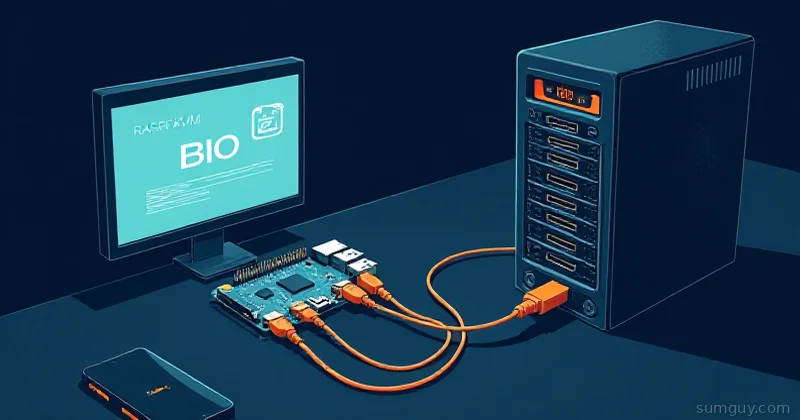
Enter Baseboard Management Controller (BMC), the side computer that never sleeps. It’s not Linux. It’s not Windows. It’s a tiny embedded system running IPMI (or iDRAC if you’re Dell, iLO if you’re HP, or some vendor-specific fork) that lets you manage the machine when the OS is toast, hung, or not even booted yet. Power on, power off, reboot, serial console, virtual media, all remote, all from your office chair.
BMCs are notorious security disasters if you don’t treat them with suspicion. This is the thing that can power off your entire lab with a single curl command, and if you’re not careful, someone else’s curl command will too.
IPMI: The Universal (Messy) Standard
IPMI (Intelligent Platform Management Interface) is the industry standard that’s been around since 1998. It’s on basically every server-class motherboard, enterprise Dells, HPs, Supermicro boxes, and increasingly on consumer/prosumer gear (Ryzen Embedded, some enthusiast boards).
iDRAC (Dell’s Integrated Dell Remote Access Controller) and iLO (HP’s Integrated Lights-Out) are IPMI implementations, they speak IPMI under the hood but add their own web UI, firmware, and quirks on top. Supermicro boxes often run a generic IPMI stack. All of them support the same basic ipmitool commands, but the web interfaces and out-of-band features vary.
The three ways to talk to BMC:
- Web UI: https://192.168.1.50:443 (port varies by vendor)
- Slow, clunky, often lags
- Java applets (old iLO), HTML5 (modern)
- Handy for one-offs, but you won’t script this
- IPMI over LAN (IPMIv2): Network protocol on UDP 623
ipmitoolclient sends commands over Ethernet- Encrypted (HMAC-MD5 or HMAC-SHA1), but the crypto is… dated
- Works from anywhere on the network if you know the IP, username, password
- Redfish API: Modern REST/JSON replacement for IPMI
- Cleaner, better documented, less weird
https://192.168.1.50/redfish/v1/- Growing support, especially newer Dell/HP/Supermicro
All three often run on the same device at the same time.
ipmitool Basics: The Workhorse
Install on Linux/macOS:
# Ubuntu / Debiansudo apt install ipmitool
# macOS (homebrew)brew install ipmitool
# RHEL / CentOSsudo dnf install ipmitool
First, set credentials. Most BMCs ship with weak defaults (admin/admin, root/password). Change yours immediately, we’ll get to why.
Then try:
ipmitool -I lanplus -H 192.168.1.50 -U admin -P your_password \ power statusThis says: “Connect over LAN+ to 192.168.1.50, auth as admin, check power state.”
Common commands:
# Power controlipmitool -I lanplus -H 192.168.1.50 -U admin -P your_password \  power onipmitool -I lanplus -H 192.168.1.50 -U admin -P your_password \  power offipmitool -I lanplus -H 192.168.1.50 -U admin -P your_password \  power reset
# Check sensors (temps, voltages, fans)ipmitool -I lanplus -H 192.168.1.50 -U admin -P your_password \  sensor list
# Serial console redirect (you become the power user)ipmitool -I lanplus -H 192.168.1.50 -U admin -P your_password \  sol activate# Press ~. to exit
# View logsipmitool -I lanplus -H 192.168.1.50 -U admin -P your_password \  sel list
Typing -P your_password on every line is asking to leak it into your shell history and process list. ipmitool reads the password from the IPMI_PASSWORD env var when you pass -E (it doesn’t read host/user from the environment, so those still need flags). The cleaner habit is to wrap the rest in a shell alias:
export IPMI_PASSWORD=your_passwordalias bmc='ipmitool -I lanplus -H 192.168.1.50 -U admin -E'bmc power statusIf you’d rather keep the password in a locked-down file, ipmitool -f passwordfile reads it from there instead.
Redfish: The Sane Successor
Redfish is what IPMI should’ve been. It’s REST, JSON, standards-based, and most importantly: cleaner to read.
# Query system infocurl -k -u admin:your_password \  https://192.168.1.50/redfish/v1/Systems/1
# Power on (note the JSON body)curl -k -u admin:your_password \  -X POST \  -H "Content-Type: application/json" \  -d '{"ResetType":"On"}' \  https://192.168.1.50/redfish/v1/Systems/1/Actions/ComputerSystem.Reset
# Get all sensorscurl -k -u admin:your_password \  https://192.168.1.50/redfish/v1/Chassis/1/Sensors
The -k flag skips cert validation (the BMC’s self-signed cert is almost certainly going to fail, you can import the real cert, but nobody does).
Redfish is still not ubiquitous (older boards might not have it), but if your BMC firmware is modern, you probably have it. Check your web UI or the API docs.
The VLAN Isolation Lecture
Here’s where I get stern.
BMCs are management interfaces, not general-purpose NICs. They sit outside your OS, if your hypervisor is compromised, the attacker can still reach the BMC and power the whole thing down. Or turn it into a launchpad to attack the rest of your network.
Never put your BMC on the same VLAN as your main network. You’re going to create a separate management VLAN.
Here’s the rough setup:
┌─────────────────────────────────────────┐│ Main Network VLAN 100 ││ 192.168.1.0/24 ││ ├─ Desktop (192.168.1.10) ││ ├─ Laptops, IoT ││ └─ NAS management interface │└─────────────────────────────────────────┘ ↑ │ (Firewall rules) ↓┌─────────────────────────────────────────┐│ Management VLAN 200 ││ 192.168.200.0/24 (separate subnet) ││ ├─ Server BMC iDRAC (192.168.200.10) ││ ├─ Proxmox BMC (192.168.200.11) ││ ├─ NAS BMC (192.168.200.12) ││ └─ PDU management port (192.168.200.50) │└─────────────────────────────────────────┘Your switch needs to:
- Trunk VLAN 100 and VLAN 200 to the firewall
- Assign each BMC’s dedicated NIC to VLAN 200 only
- Firewall rule: allow VLAN 100 → VLAN 200 on only ports 623 (IPMI), 443 (Redfish/web UI), 22 (SSH to BMC console)
Most home lab folks skip this because “it’s only home lab”, and then wonder why their power control got abused. Isolating the BMC network is like locking your server closet door: cheap insurance against the curious or malicious.
Real-World Example: Automated Reboot Schedule
Say you want to schedule weekly reboots (common for long-running Kubernetes clusters):
#!/bin/bashBMC_HOST="192.168.200.11"BMC_USER="admin"BMC_PASS="secure_password_here"
echo "Initiating graceful shutdown..." "sudo systemctl poweroff"
# Wait for OS to shut downsleep 30
# Power cycle the bare metalecho "Power cycling..."ipmitool -I lanplus \ -H "$BMC_HOST" \ -U "$BMC_USER" \ -P "$BMC_PASS" \ power reset
echo "Reboot initiated via BMC"Cron it:
0 2 * * 0 root /usr/local/bin/reboot-vm-host.sh >> /var/log/reboot.log 2>&1Your server cold-reboots every Sunday at 2 AM, fully remote, zero keyboard required.
Security: The Caveats No One Reads
-
Default credentials are baked in. The admin account ships enabled and often has a known default password. Change it immediately, before you even connect it to the network.
-
IPMI v1.5 is insecure. Use v2.0 (
lanplus). v1.5 crypto is fundamentally weak. If your BMC only supports v1.5, upgrade firmware or avoid remote BMC access. -
Passwords are cleartext in config files. If you’re storing
ipmitoolpasswords in shell scripts or config files, restrict permissions:
chmod 600 ~/.ipmitool_config-
HTTPS certs are self-signed. The web UI certificate won’t validate. Either import the cert or accept the warning. Many old BMCs don’t support modern TLS versions: if the web UI works but curl fails, it’s a TLS mismatch.
-
Firmware has bugs. BMC firmware is rarely updated post-purchase. Exploit databases list IPMI vulnerabilities by year. If possible, keep your BMC isolated on a separate network and only access it from trusted machines.
-
Serial console over sol (Serial Over LAN) is a backdoor. If someone has BMC credentials, they can see your BIOS password, boot sequence, and kernel logs. Treat BMC password like root password.
So Which One Do You Actually Use?
Start with ipmitool. It’s portable, scriptable, and widely supported. If you’re doing one-offs or automation, this is the hammer.
Switch to Redfish if you’re building REST-based tools or want to integrate with orchestration. It’s cleaner and the APIs are self-documenting.
Use the web UI only for initial setup, changing defaults, checking sensor history, maybe viewing event logs. The UI is slow and clunky compared to CLI.
For your home lab:
- Create a management VLAN and lock the BMC there
- Use strong passwords (randomized, stored in a password manager)
- Restrict BMC access to specific IPs if your firewall allows it
- Don’t run IPMI v1.5
- Update firmware if there’s a security patch available
- Log out of the web UI when you’re done (sessions hang otherwise)
Your 3 AM self will thank you when the server is hung and you can power-cycle it from bed without stumbling downstairs.
Next Steps
- SSH into your server, run
dmidecode | grep -i ipmito see if you have a BMC and which vendor - Find the BMC’s IP: often in your DHCP lease list or router admin panel (look for a device named something like “iDRAC” or “iLO”)
- Change the default password immediately
- Try
ipmitoolfrom your main machine: you don’t need to be on the BMC’s network yet, just the same physical network - Plan the VLAN isolation: separate switch port, separate subnet, firewall rules
- Bookmark this post: you’ll be back here at 2 AM when something’s hung and you need the power cycle command
Happy remote-controlling.