WebGL on Chrome
Enable hardware acceleration :
- browse to ***chrome://settings/advanced
-
scroll to the bottom and look for Use hardware acceleration when available

-
make sure Use hardware acceleration when available is checked ✓
-
if it tells you to then click the relaunch button
Check if webGL is enabled in Chrome
-
Copy paste the following in your browser’s address bar chrome://gpu
-
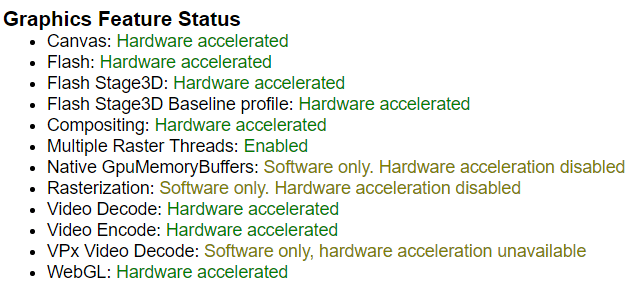
Look for the WebGL item in the Graphics Feature Status list
-
The status will be one of the following:
-
Hardware accelerated: WebGL is enabled and hardware-accelerated (running on the graphics card).
-
Software only, hardware acceleration unavailable: WebGL is enabled, but running in software.
-
Unavailable: WebGL is not available in hardware or software.
-
You are looking for the status to be #1 from the above list i.e. Hardware accelerated
WebGL on FireFox
Enable WebGL
-
Copy paste the following in your browser’s address bar
about:config -
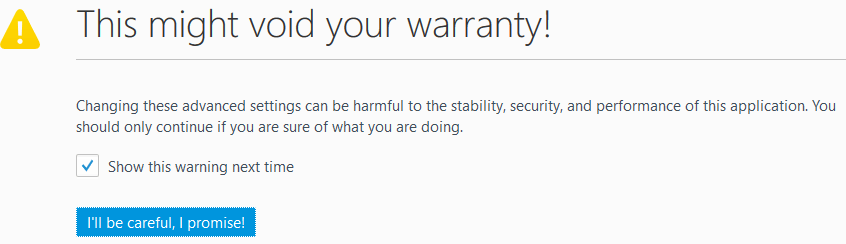
you will be asked to accept a scary warning, I am positive this will be ok unless you start going godzilla or the hulk on unrelated settings 🙂 so.. dont do that.
-
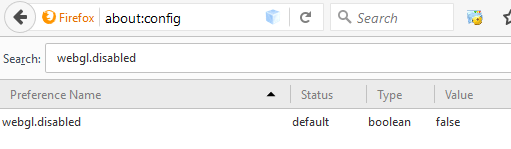
Search for
webgl.disabled -
make sure that its value is set to
false
Check WebGL status on FireFox browser
-
Copy paste the following in your browser’s address bar about:support
-
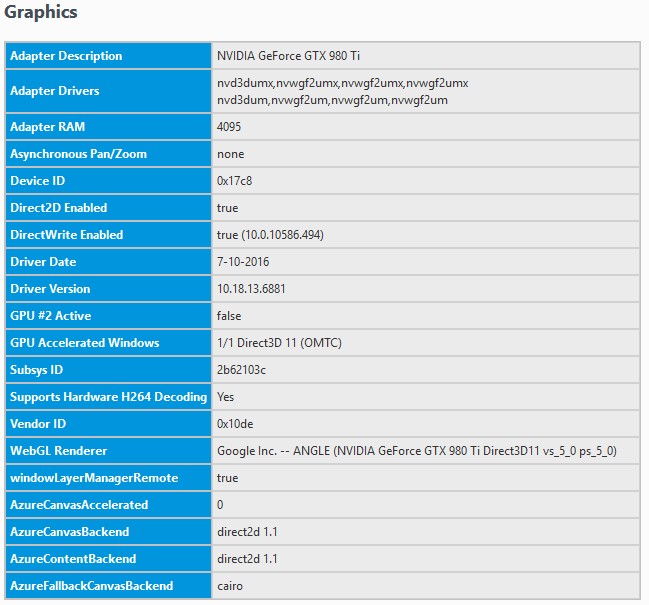
Inspect the WebGL Renderer row in the Graphics table
-
The status can be either of two things
-
the name of a graphics card manufacturer, model and driver i.e. Google Inc.: ANGLE (NVIDIA GeForce GTX 980 Ti Direct3D11 vs_5_0 ps_5_0)
-
Something along the lines of BLocked due to version or Blocked due to unresolved issues.
-
Obviously you want #1 as the result i.e. a working webgl.
When “Hardware Accelerated” Still Doesn’t Work
So you followed the steps, WebGL says it’s enabled, and yet the thing you’re trying to run is still broken or dog slow. Here’s where it usually goes sideways.
Linux + Nvidia: The Force-Enable Dance
On Linux, Chrome has a habit of blocklisting your GPU driver even when it works fine. The blocklist exists for good reasons, buggy drivers exist, but it’s overly aggressive, especially on Nvidia. You’ll see “Hardware accelerated” in chrome://gpu but then spot a wall of yellow warnings about “overridden by user” or “blocklisted.” That’s not the same as actually working.
To override the blocklist, launch Chrome with these flags:
google-chrome --ignore-gpu-blocklist --enable-gpu-rasterization --enable-zero-copyOr if you want this to stick without retyping it every time, add the flags to your desktop entry or a wrapper script. On most distros the launcher lives at /usr/share/applications/google-chrome.desktop, find the Exec= line and append the flags there.
For Chromium (the open-source build), same deal, different binary name:
chromium --ignore-gpu-blocklist --enable-gpu-rasterizationFirefox: The Two Settings That Actually Matter
webgl.disabled = false is the obvious one, but there’s a second setting that bites people on Linux and older machines: webgl.force-enabled. When Firefox decides your hardware is too risky for WebGL, it’ll quietly disable it even with the main toggle set correctly. Set this to true in about:config to override that decision.
While you’re in there, also check layers.acceleration.force-enabled, set it to true if general GPU compositing isn’t kicking in. These two together solve probably 80% of the “I did everything right and it still doesn’t work” reports.
Wayland vs X11: The Hidden Curveball
If you’re on a modern Linux distro running Wayland and you launched Chrome natively under Wayland (not XWayland), GPU acceleration can fall apart depending on your driver stack. The tell is chrome://gpu showing “Vulkan: Disabled” and a bunch of “Not hardware accelerated” entries that should be fine.
The quick test, force Chrome into XWayland mode:
DISPLAY=:0 google-chrome --ozone-platform=x11If WebGL suddenly works, your Wayland + GPU combo needs either a newer driver or the --enable-features=VaapiVideoDecodeLinuxGL flag. Wayland native acceleration is getting better, but it’s still driver-lottery territory in 2026.
Quick Sanity Check: Is WebGL Actually Rendering?
Don’t just trust the status page. Open this in your browser to verify WebGL is actually drawing something:
# Quick one-liner to open a WebGL test pagexdg-open "https://get.webgl.org"You should see a spinning cube. No cube, no WebGL, regardless of what the status page says. The status flags tell you what the browser thinks is available, the test page tells you what actually works end-to-end.
The “Software Only” Fallback Isn’t Always Useless
Worth knowing: “Software only, hardware acceleration unavailable” in Chrome doesn’t mean WebGL is broken, it means it’s running on the CPU via Mesa’s software rasterizer. Most WebGL content will still work, just slower. For a browser game or a 3D visualization with simple geometry, you might not even notice. Where it falls apart is anything that leans hard on shader throughput or needs 60fps, things like three.js scenes with lots of lights, or WebGPU workloads that fall back to WebGL.
If you’re stuck in software mode and can’t fix it, at least know what you’re working with before you spend an hour debugging the wrong thing.