Same Ping, Different Planet
Two friends both report 15 ms ping to their streaming host. One says the stream feels like a local PC. The other says it feels like steering a shopping cart through mud. Both are telling the truth. The ping number is accurate, but it measures one hop in a chain of seven.
Full example: Clone the working files at github.com/KingPin/sumguy-examples/gaming/cloud-gaming-latency-beyond-ping
Ping measures the round trip of a tiny packet. A game stream also has to read your input, render a frame, encode it, push a fat frame through the link, decode it, and light up a panel. Any stage can eat more milliseconds than the network does. And the stage that usually decides how a stream feels is variance: one late frame hurts more than ten steady extra milliseconds. The chain has seven stages. You can measure most of them on GeForce Now and on Sunshine + Moonlight, and the fixes rank cleanly by payoff.
For the basics, the cloud gaming tips post covers Wi-Fi versus ethernet and ISP routing. The Sunshine and Moonlight post covers the install. This one covers what happens in between.
The Latency Chain, Stage by Stage
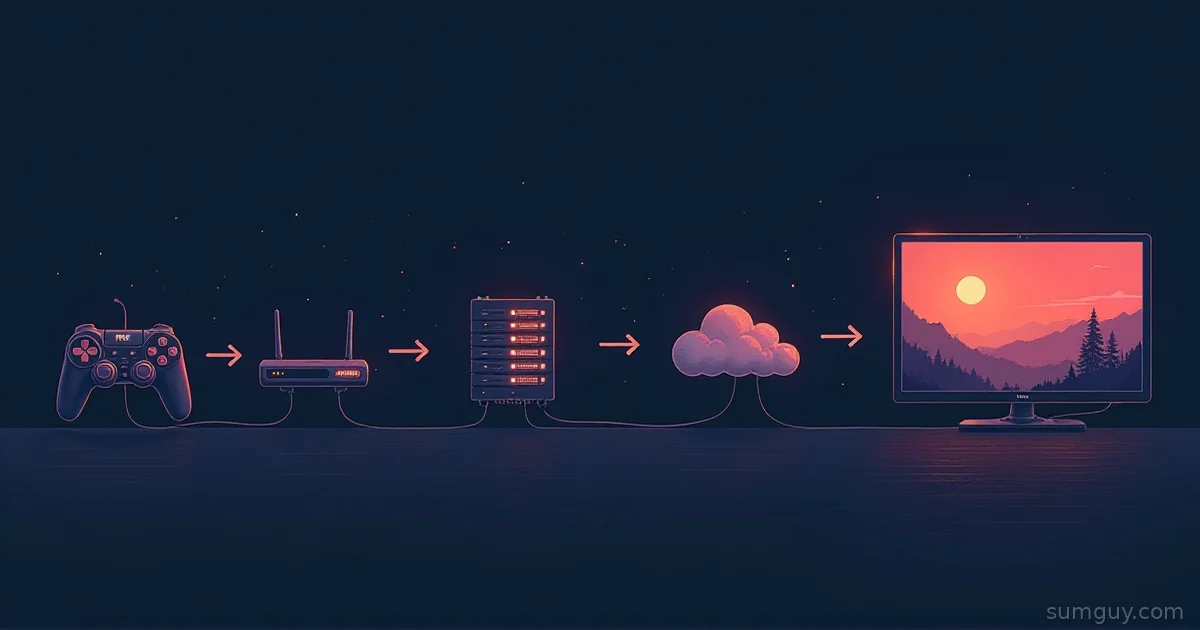
Here is the full path from your thumb to your eyeball. The ranges below are typical values for current hardware, not measurements of your setup. Treat them as orders of magnitude and measure your own.
| Stage | Typical range | What moves it |
|---|---|---|
| 1. Input device | 1 to 15 ms | Wired USB (often 1 to 8 ms poll interval) vs Bluetooth (often 7 to 15 ms intervals plus radio retries) |
| 2. Client capture and send | about 1 ms | Almost nothing |
| 3. Network, one way each direction | RTT 1 to 40 ms | Distance, routing, Wi-Fi, queues |
| 4. Game frame time on the server | 8 to 17 ms (up to 33 ms) | Server fps: 16.7 ms at 60, 8.3 ms at 120 |
| 5. Capture and encode | 2 to 10 ms | NVENC, AMF, QuickSync, preset, resolution |
| 6. Transmit the encoded frame | 2 to 15 ms | Frame size vs link speed |
| 7. Decode, queue, scanout | 5 to 45 ms | Hardware vs software decode, V-Sync, TV game mode |
Stage 3 is the one everyone checks. Stages 4 through 7 are where the surprises hide.
Frame time on the server. A game running at 60 fps produces a new frame every 16.7 ms. Your input lands somewhere inside that window, so on average you wait about half a frame before the game even sees it, then a full frame to draw the result. At 120 fps those numbers halve. This is why a capped 30 fps game streams worse than a 120 fps one at the same ping.
Encode. Hardware encoders on current GPUs, run with low-latency presets, typically land in the low single-digit milliseconds per frame. Software encoding on a busy CPU can be several times that. Sunshine’s own docs warn that a higher NVENC preset trades more encoding latency for compression.
Transmit. This is the stage people forget exists. An encoded frame is a blob of bytes, and it has to cross your link. A 100 KB frame is 800 kilobits. On a 100 Mbit link that takes 8 ms to serialize. A keyframe can be several times the size of an average frame, so scene cuts and fast pans make this stage spike. Bandwidth buys you smaller waits here, but only up to the point where the frame fits comfortably.
Decode, queue, scanout. Hardware decode is typically a few milliseconds at most. Software decode on a weak client can add much more. Then the panel: a TV left in its default picture mode can add 30 ms or more of processing, and a monitor or TV in game mode cuts that to a handful. A 120 Hz display also shortens the wait for the next refresh.
Add it up. Take a wired controller (4 ms), 1 ms to send, 15 ms RTT, a 60 fps server (about 16 ms), 4 ms encode, 6 ms transmit, 3 ms decode, and a TV in game mode (12 ms). That is roughly 61 ms total, with the network at a quarter of it. Swap in a Bluetooth pad and a TV in movie mode, and the same 15 ms ping lives inside a 100 ms chain. Same ping. Different planet.
Jitter: Why Variance Beats Average
Average latency is what the marketing page quotes. Variance is what you feel.
The client keeps a small buffer to absorb network timing wobble. If packets arrive evenly, the buffer can stay nearly empty and latency stays low. If they arrive in clumps, the client has two choices: wait longer (more latency) or show a frame late (a visible hitch). Frame pacing is that decision. Either way, your steady 15 ms link has turned into something with a bad tail.
Three common causes of a bad tail:
- Wi-Fi retries. A lost wireless frame gets retransmitted. The packet arrives, but 10 to 50 ms late. Your average ping barely moves. Your p95 does.
- Bufferbloat. Your router queues packets while someone uploads a backup or a game updates. Latency under load can jump from a few ms to hundreds. The stream hitches for exactly as long as the queue is full.
- Missing packets. Video packets that never arrive mean a frame is incomplete. Streaming protocols use forward error correction to rebuild some of them, and ask for a new keyframe when that fails. A keyframe is large (see the transmit stage), so recovery causes its own spike.
A steady 10 ms extra is something your hands adapt to within a few minutes. A random dropped frame every few seconds is something they never adapt to. That is why a 40 ms stable link beats a 15 ms link with a ragged p95.
How to Measure Each Stage
Moonlight’s overlay
Moonlight (the Qt desktop client, currently 6.2.0) shows a stats overlay with Ctrl+Alt+Shift+S. The Moonlight docs note it is not supported on Steam Link or Raspberry Pi. From the client source, the lines it draws include:
Video stream: resolution, fps, and codec.Incoming frame rate from network,Decoding frame rate, andRendering frame rate.Host processing latency min/max/average: capture plus encode on the host, in ms. This is your stage 5.Frames dropped by your network connectionandFrames dropped due to network jitter, as percentages.Average network latencywith a variance value in ms. This is your stage 3, and the variance is the number to watch.Average decoding time: your stage 7, decode part.Average frame queue delayandAverage rendering time (including monitor V-sync latency).
If host processing is 2 ms, network latency is 12 ms with 1 ms variance, and decode is 3 ms, your stream is fine and the problem is somewhere the overlay cannot see: the display, the controller, or the game’s own frame time. If the jitter drop percentage climbs above zero, you have a pacing problem, and the fix is on the network side.
GeForce Now’s overlay
GeForce Now opens its in-game overlay with Ctrl+G (Cmd+G on macOS). NVIDIA’s release notes list a separate streaming statistics overlay at Ctrl+N for the browser client at play.geforcenow.com. NVIDIA’s shortcut list has changed over the years, so check the overlay on your own client if the key does nothing. I could not find NVIDIA documentation showing a Reflex latency readout inside a stream, so do not expect one. What you can read is network latency and stream stats, which is stage 3 plus decode.
NVIDIA’s system requirements page asks for under 80 ms of network latency to a data center, and lists 25 Mbps for 1080p at 60 fps and 45 Mbps for 4K at 120 fps on PC clients. As of October 2026 the membership page names two tiers, Performance and Ultimate, plus a Day Pass, and states up to 5K at 120 fps and 360 fps for Ultimate on RTX 50-series servers.
A jitter script
ping already prints every sample. This script turns them into p50, p95, max, and loss, which is the shape of your link instead of its average.
#!/usr/bin/env bash# Usage: ./jitter.sh 192.168.1.50 [count]# Sends one probe every 0.2 s and reports percentiles in ms.host="${1:?usage: jitter.sh HOST [COUNT]}"count="${2:-200}"
ping -c "$count" -i 0.2 "$host" \  | grep -oE 'time=[0-9.]+' | cut -d= -f2 | sort -n \  | awk -v sent="$count" '    { v[NR] = $1 }    END {      if (NR == 0) { print "no replies"; exit 1 }      p50 = v[int((NR * 0.50) + 0.5)]      p95 = v[int((NR * 0.95) + 0.5)]      printf "samples=%d loss=%.1f%% p50=%.1f ms p95=%.1f ms max=%.1f ms\n",             NR, (sent - NR) * 100 / sent, p50, p95, v[NR]    }'
Run it twice against your router or host: once idle, and once while a big download or upload runs on another device. If p95 jumps from 3 ms to 80 ms under load, you have bufferbloat, and no codec setting will fix it. The Waveform bufferbloat test in a browser gives you the same answer with a letter grade.
Tuning in Order of Payoff
- Get off bad Wi-Fi. Ethernet first. If you cannot, use Wi-Fi 6 or 6E on a clean 5 or 6 GHz channel, close to the access point. This removes the retry tail, which is usually the largest jitter source in a home network.
- Fix the display. Turn on game mode on the TV or monitor. If the panel supports 120 Hz and the client can drive it, use it. This is often the biggest single drop in the whole chain, and it is free.
- Use a wired controller. A USB pad removes Bluetooth radio retries and connection-interval waits.
- Kill bufferbloat with SQM. On OpenWrt, install
luci-app-sqmand set a cake queue at about 90 to 95% of your measured line speed. Rerunjitter.shunder load to confirm the p95 stays flat. - Tune Sunshine only if the overlay says so. Defaults are decent. The keys that matter, from the Sunshine configuration docs:
# sunshine.confencoder = nvencnvenc_preset = 1nvenc_latency_over_power = enabledfec_percentage = 20encoder accepts nvenc, quicksync, amdvce, vaapi, vulkan (Linux only), and software. nvenc_preset runs from 1 (fastest, default) to 7, and higher numbers cost encode latency. nvenc_latency_over_power is on by default and the docs advise against turning it off, since it stops the driver’s power saving from adding encode latency (Windows only). fec_percentage defaults to 20. The docs warn that higher values cost bandwidth. Raise it on a lossy link, since repaired packets mean fewer keyframe requests. minimum_fps_target defaults to 0, meaning half the stream fps, and controls how many duplicate frames Sunshine sends for static content. Leave it alone unless you see odd pacing on a static screen.
-
Moonlight settings. Turn on
Frame pacing(it only works with V-Sync on). Moonlight’s tooltip says it “reduces micro-stutter by delaying frames that come in too early”, which trades a little latency for smoothness. If you want the lowest possible latency and can tolerate tearing, turn V-Sync off instead, since Moonlight says that allows sub-frame rendering latency. Leave the decoder onAutomatic (Recommended)unless you have proof it picks software decoding. -
Things that do nothing. More bandwidth past the point where your frames fit. “Gaming” DNS servers, because DNS runs once at connection time. VPN “game accelerators”, which add a hop and rarely shorten the route. A fatter ISP plan, if your link was never the bottleneck.
Fixing stage 3 when stage 7 is the problem is like hiring a forklift to move a couch. Technically it works, but your neighbors will have questions.
Self-Hosted vs GeForce Now, Stage by Stage
Network. Sunshine on your LAN cuts RTT to about 1 to 3 ms. GeForce Now is limited by your distance to a data center. Self-hosting wins this stage by a wide margin, and it is the only stage where ping actually decides the winner.
Server frame time and encode. GeForce Now runs on datacenter GPUs with fast encoders, and you pick a tier that sets the fps and resolution you stream. On Sunshine you control the game’s fps cap and encoder settings, but a mid-range home GPU rendering and encoding at the same time can add frame time. The trade goes either way.
Transmit and decode. On a LAN, the transmit stage nearly vanishes. On GeForce Now it depends on your internet link and the bitrate NVIDIA picks. The decode stage depends on your client in both cases, and a modern client with hardware decode is fine.
Control. Sunshine lets you see and change everything. GeForce Now gives you a few settings and trusts you with the rest. If you like fixing things, that matters. If you do not, it is a feature.
The SumGuy Take
Stop optimizing the number you can see. Run jitter.sh under load, open the overlay, and write down the three numbers that matter: network variance, host processing, and decode time. Then fix whichever is biggest.
For most people the order is: ethernet, display game mode, wired pad, SQM. That is four fixes, none of them involving a codec flag. Your 2 AM self will thank you when the boss fight does not hitch.
Common Questions
Is 20 ms ping good enough for cloud gaming?
Yes, 20 ms ping is good enough for most games. The stream adds encode, decode, and display time on top, so total delay lands around 60 to 100 ms. Variance matters more than the average: a steady 20 ms link feels better than a 10 ms link with a ragged p95.
Does a 120 Hz monitor reduce cloud gaming latency?
Yes, a 120 Hz monitor reduces cloud gaming latency, but only if the stream also runs at 120 fps. Frame time halves from 16.7 ms to 8.3 ms, and the display waits less for the next refresh. A 120 Hz panel showing a 60 fps stream gains little.
Is Bluetooth controller lag noticeable in cloud gaming?
Sometimes, yes. A Bluetooth controller often adds a few extra milliseconds over USB, and radio retries add random spikes. Those spikes are the part players notice. A wired controller removes both, and costs nothing if you already own the cable.
How much bandwidth does cloud gaming need?
Cloud gaming needs 25 Mbps for 1080p at 60 fps on GeForce Now, according to NVIDIA’s system requirements, and 45 Mbps for 4K at 120 fps. Sunshine on a LAN works with whatever bitrate you set. Past the point where frames fit the link, extra bandwidth does not reduce latency.
Why does cloud gaming stutter with a low ping?
Cloud gaming stutters with a low ping because ping measures average delay, not delay variance. Wi-Fi retries, bufferbloat, and dropped packets create late frames that the client cannot hide. Run a ping test while another device uploads. If p95 jumps, the queue is the cause.