Your Linux Box Has Been Using cgroups v2 for Years
You just didn’t notice. If you’re on Fedora 31+, Ubuntu 21.10+, Debian 11+, Arch, anything with systemd 247 or newer, your system booted into the unified cgroup hierarchy on day one. Docker’s been defaulting to it since 20.10. Kubernetes since 1.25. The v1 mess is largely behind us.
cgroups v2 isn’t just a version bump. It’s a fundamental redesign that actually makes sense, and once you understand how it’s wired, you get a direct knob for every resource your kernel manages: CPU, memory, IO, and the pressure signals that tell you when something’s actually struggling.
The PSI (Pressure Stall Information) deep dive, what those numbers mean at scale, alerting on them, using them in schedulers, is live: Linux PSI: The Pressure Metrics Load Average Wishes It Were.
v1 Was a Mess. Here’s Why.
cgroups v1 let each resource subsystem (cpu, memory, blkio, net_cls…) maintain its own independent hierarchy. A process could be in cpu:/batch/jobs but memory:/web/frontend. Different parents, different trees, no coordination. Controllers were bolted on independently over years and it showed: blkio and memory had no shared ancestry, so memory reclaim couldn’t account for IO cost. Kernel devs hated it.
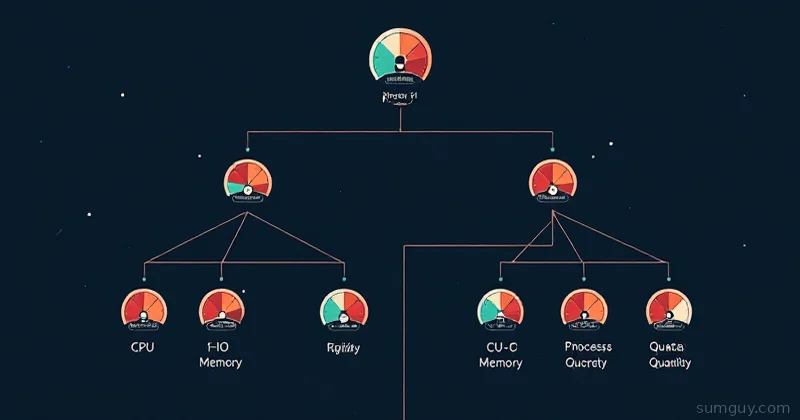
v2 fixes this with one rule: a single unified hierarchy. Every process lives at exactly one node in one tree. All controllers operate on the same tree. That’s it. The kernel can now reason about a process group holistically: memory pressure triggers IO throttling because they’re siblings in the same node.
The Filesystem is the API
Everything lives under /sys/fs/cgroup/. No daemon, no socket, just files.
ls /sys/fs/cgroup/cgroup.controllers cgroup.max.depth cgroup.procscgroup.events cgroup.max.descendants cgroup.statcgroup.freeze cgroup.pressure cgroup.subtree_controlcgroup.threads cgroup.type cpu.pressurecpu.stat io.pressure memory.currentmemory.events memory.high memory.lowmemory.max memory.min memory.pressurememory.stat memory.swap.current memory.swap.maxThe root cgroup. Every subdirectory is a child cgroup. Your systemd slices are already there:
ls /sys/fs/cgroup/system.slice/ls /sys/fs/cgroup/user.slice/ls /sys/fs/cgroup/init.scope/Each service gets its own scope under system.slice. Check where nginx lives:
systemctl show nginx.service -p ControlGroup# ControlGroup=/system.slice/nginx.servicecat /sys/fs/cgroup/system.slice/nginx.service/cgroup.procsThat file lists every PID in the cgroup. One line per PID. No ceremony.
What Each Interface File Actually Means
The naming is consistent once you know the pattern: <controller>.<attribute>. Read them with cat, write limits by echoing values.
Memory:
| File | What it does |
|---|---|
memory.current | Current bytes used by the cgroup |
memory.high | Soft limit, kernel starts reclaiming and throttling, but won’t OOM |
memory.max | Hard limit, OOM killer fires if exceeded |
memory.min | Guaranteed minimum, kernel won’t reclaim below this |
memory.low | Soft protection, reclaim here only under global pressure |
memory.events | Counters: oom, oom_kill, high events |
memory.stat | Detailed breakdown: anon, file, slab, sock, etc |
CPU:
| File | What it does |
|---|---|
cpu.weight | Relative share (1-10000, default 100), matters under contention |
cpu.max | Hard quota: $QUOTA $PERIOD in microseconds, max = unlimited |
cpu.stat | usage_usec, user_usec, system_usec, throttled_usec |
cpu.pressure | PSI metrics for CPU stall time |
IO:
| File | What it does |
|---|---|
io.max | Per-device limits: $MAJ:$MIN rbps=X wbps=X riops=X wiops=X |
io.weight | Relative IO share (1-10000) |
io.stat | Per-device read/write bytes and IOPS counters |
io.pressure | PSI metrics for IO stall time |
Reading the Pressure Files
Before you set limits, read what’s already happening. PSI files report what percentage of time tasks in the cgroup were stalled waiting for a resource.
cat /sys/fs/cgroup/system.slice/some.service/memory.pressuresome avg10=0.00 avg60=0.00 avg300=0.00 total=0full avg10=0.00 avg60=0.00 avg300=0.00 total=847291some = at least one task stalled. full = all runnable tasks stalled (fully blocked). avg10/60/300 are exponential moving averages over those windows in seconds. total is microseconds of stall time since boot.
A full avg60 above ~5% on memory is your “something is hurting” signal. We’ll go deep on interpreting these thresholds in the PSI article. For now, just know where to look.
Practical Recipes
1. Limit a Runaway Process Group
You’ve got a data-crunching script that’s eating 14 GB of RAM and you’d rather it die cleanly at 4 GB than take the system down. Create a cgroup on the fly:
# Create the cgroupmkdir /sys/fs/cgroup/batch-crunch
# Enable the memory controller for children of the root so it's# available in batch-crunch. (On a systemd box root usually already# delegates memory — check: cat /sys/fs/cgroup/cgroup.subtree_control)echo "+memory" > /sys/fs/cgroup/cgroup.subtree_control
# Set hard limit: 4 GiBecho $((4 * 1024 * 1024 * 1024)) > /sys/fs/cgroup/batch-crunch/memory.max
# Set soft limit: 2 GiB (start reclaiming here first)echo $((2 * 1024 * 1024 * 1024)) > /sys/fs/cgroup/batch-crunch/memory.high
# Move the process into itecho $PID > /sys/fs/cgroup/batch-crunch/cgroup.procs
Or skip the manual dance and use systemd-run:
systemd-run --scope -p MemoryMax=4G -p MemoryHigh=2G \ --unit=batch-crunch my-crunch-script.sh--scope creates a transient scope unit. It shows up in systemctl status, logs go to journald, and the cgroup cleans up when the process exits. Your 2 AM self will appreciate not having to remember to rmdir a cgroup.
2. Pin a Service to N CPUs
Say you have a video transcoder that should never starve your web server. Two options: hard quota (it can never use more than X CPU-time per period) or weight (it gets fewer shares under contention but can burst when idle).
Hard quota: cap at 2 CPUs worth of time:
# 200000 out of 100000 period = 2 CPUssystemd-run --scope -p CPUQuota=200% ffmpeg -i input.mkv output.mp4Weight: deprioritize under load:
systemd-run --scope -p CPUWeight=20 ffmpeg -i input.mkv output.mp4Default weight is 100. Setting 20 means the transcoder gets roughly 1/5th the CPU share compared to a default-weight service when both are competing. When nothing else needs CPU, it can still run flat out.
For a persistent service, use a drop-in:
systemctl edit ffmpeg-transcoder.service[Service]CPUWeight=20CPUQuota=200%Save, reload: systemctl daemon-reload && systemctl restart ffmpeg-transcoder.service. The drop-in lives at /etc/systemd/system/ffmpeg-transcoder.service.d/override.conf and survives package updates.
3. Throttle IO for a Backup Job
Backups are notorious for hammering IO and making everything else feel like it’s running through wet cement. Find your disk’s major:minor numbers first:
lsblk -o NAME,MAJ:MIN# sda 8:0Then set limits on the backup unit:
systemctl edit restic-backup.service[Service]IOReadBandwidthMax=/dev/sda 50MIOWriteBandwidthMax=/dev/sda 50MOr with systemd-run for a one-off:
systemd-run --scope \ -p "IOReadBandwidthMax=/dev/sda 50M" \ -p "IOWriteBandwidthMax=/dev/sda 50M" \ restic backup /dataYou can also use IOWeight for proportional throttling:
systemctl edit restic-backup.service[Service]IOWeight=10Default is 100. Setting 10 means the backup yields to everything else under IO contention. No hard cap, but it gets out of the way.
4. memory.high vs memory.max Gentle Nudge vs OOM Hammer
This is the nuance that actually matters.
memory.max is the OOM hammer. Exceed it, the OOM killer fires on a process in the cgroup. No warning, no grace period, just a SIGKILL and a log entry. Use this when you absolutely cannot let a process exceed a limit, containerized workloads, shared hosting, anything where runaway consumption is unacceptable.
memory.high is the gentle nudge. When usage hits this threshold, the kernel starts throttling memory allocation and aggressively reclaiming pages from this cgroup. The process slows down but doesn’t die. PSI memory.pressure will spike, memory.events will increment the high counter. This is perfect for batch jobs where you want to slow them down rather than kill them, or for setting a soft ceiling that gives you early warning before things go sideways.
# Watch for OOM events on a cgroupwatch -n1 cat /sys/fs/cgroup/system.slice/myapp.service/memory.eventslow 0high 47max 0oom 0oom_kill 0oom_group_kill 0high: 47 means the soft limit has been hit 47 times. Time to either give it more memory or figure out why it’s hungry. oom: 1 means you’ve already lost a process. The oom_group_kill counter is for cgroups configured to kill the entire group on OOM, useful for containers.
Practical rule: set memory.high at 80% of your budget, memory.max at 100%. The soft limit gives you breathing room and a PSI signal; the hard limit is the circuit breaker.
How Containers Use All This
When you run docker run --memory=512m --cpus=1.5 myapp, Docker is writing to cgroup files on your behalf. Check it:
# Find the container's cgroupdocker inspect myapp --format '{{.HostConfig.CgroupParent}} {{.Id}}'
# Or just lookls /sys/fs/cgroup/system.slice/docker-<container-id>.scope/cat /sys/fs/cgroup/system.slice/docker-<container-id>.scope/memory.maxcat /sys/fs/cgroup/system.slice/docker-<container-id>.scope/cpu.max
--memory=512m sets memory.max. --cpus=1.5 sets cpu.max to 150000 100000 (150ms quota per 100ms period = 1.5 CPUs). --memory-reservation maps to memory.high. Every flag in docker run is just a cgroup write with extra steps.
Kubernetes does the same thing. Resource requests and limits in your Pod spec become cpu.weight and cpu.max writes in each container’s cgroup. A container with requests.cpu: 100m and limits.cpu: 500m gets a proportional weight plus a hard quota. The kubelet handles the translation; the cgroup is the enforcement.
Podman with rootless containers uses the user session slice: your cgroups live under user.slice/user-1000.slice/ and you get the same interface without root. This is one of the nicest things about v2: delegation actually works. The kernel allows a user to manage cgroups under their own slice without any privilege escalation.
Checking What systemd Already Set
Before you reach for manual overrides, see what’s already configured:
systemctl show nginx.service | grep -E "Memory|CPU|IO"CPUWeight=100CPUQuota=IOWeight=100MemoryHigh=infinityMemoryMax=infinityMemorySwapMax=infinityAll infinity means no limits set. That’s fine until it isn’t. For any service handling user data or running third-party code, setting MemoryMax and MemoryHigh is cheap insurance. The service descriptor in /lib/systemd/system/ might already have conservative defaults; check before overriding.
The systemd unit property names (MemoryMax, CPUQuota, IOWriteBandwidthMax) map directly to the cgroup files (memory.max, cpu.max, io.max). The translation is mechanical. If you know one, you know the other.
The Hierarchy Matters for Delegation
One last thing worth understanding: limits at parent nodes cap everything below them. If system.slice has MemoryMax=8G, no service under it can exceed that collectively, regardless of individual service limits. systemd manages system.slice limits based on your system’s total resources, but if you’re building nested cgroup hierarchies (custom slices for application tiers, for example), remember that child limits are bounded by parent limits.
You can create a custom slice for a group of related services:
[Unit]Description=MyApp Services Slice
[Slice]MemoryMax=4GCPUWeight=50
Then assign services to it:
# In myapp-web.service and myapp-worker.service[Service]Slice=myapp.sliceNow both services share a 4 GB memory budget and get deprioritized as a group. Any limit you set on individual services is further constrained by the slice ceiling. Clean, composable, and entirely visible in the filesystem.
The PSI pressure files (memory.pressure, io.pressure, cpu.pressure) you’ve seen throughout this article become much more useful when you know how to interpret the numbers at scale and wire them into alerting or autoscaling decisions. That’s what the linked PSI article covers. The cgroup mechanic is here; the pressure signal interpretation is there.
Related Reading
- Linux PSI: The Pressure Metrics Load Average Wishes It Were
- crun vs runc vs youki: OCI Runtimes Compared
- Podman Quadlets: Systemd-Native Containers
- Diagnosing Slow Linux Boot with systemd-analyze
- Systemd Socket Activation: Start Services Only When Someone Actually Knocks
- Ulimit, Cgroups, and the Art of Stopping Processes From Eating Your Server