Where Is the HDMI Cable, and Does the Dishwasher Still Have a Warranty?
It is 2 AM. The dishwasher is leaking onto the kitchen floor. You know you bought it in 2024, you know it had a three year warranty, and you have no idea where the receipt went. Meanwhile the HDMI 2.1 cable you need tomorrow is in one of eleven identical cardboard boxes in the garage.
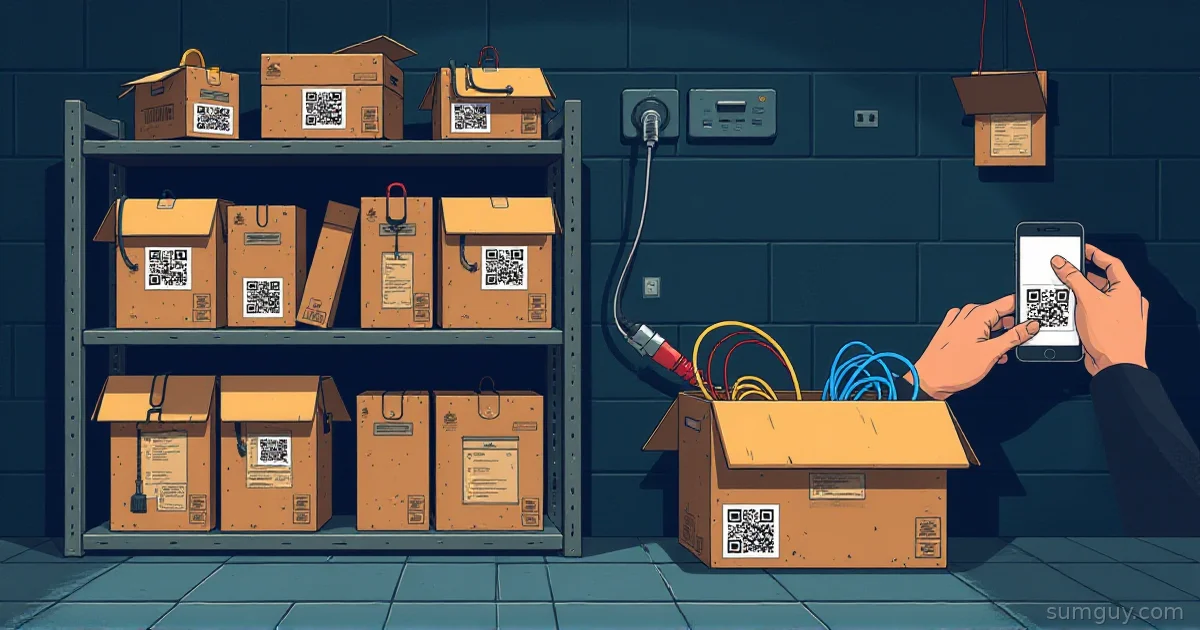
Homebox fixes both problems with one idea: every thing you own gets a record, every container gets a printed QR label, and every record can hold the receipt and the warranty PDF. You scan the box, you see what is in it. You open the dishwasher, you see the purchase date, the price, and the warranty expiry. The whole stack is one Go container with a SQLite file, and it needs no separate database.
Full example: Clone the working files at github.com/KingPin/sumguy-examples/self-hosting/homebox-home-inventory
One Quick Note About Which Homebox
The original hay-kot/homebox repository is archived, with its last push in June 2024. The maintained fork lives at sysadminsmedia/homebox, still AGPL-3.0, and it ships the images and docs used here. This article tests release v0.27.1 from that fork, and every command below ran against it. If an old tutorial points you at the hay-kot image, swap in the ghcr.io/sysadminsmedia/homebox image and read on.
The Compose File
Homebox listens on port 7745 inside the container and keeps everything under /data. The tags come as a regular image, a -rootless variant, and a -hardened distroless variant. Pin a version instead of latest, because you want upgrades to be a decision, not a surprise.
services:  homebox:    image: ghcr.io/sysadminsmedia/homebox:0.27.1    restart: unless-stopped    environment:      - TZ=UTC      - HBOX_LOG_LEVEL=info      - HBOX_WEB_MAX_UPLOAD_SIZE=10      - HBOX_OPTIONS_ALLOW_ANALYTICS=false      - HBOX_OPTIONS_ALLOW_REGISTRATION=true      # Base URL printed inside label QR codes      - HBOX_OPTIONS_HOSTNAME=https://homebox.example.com      # Hashes API keys. Generate with: openssl rand -base64 48      - HBOX_AUTH_API_KEY_PEPPER=change-me-to-a-long-random-string    volumes:      - homebox-data:/data    ports:      - "3190:7745"
volumes:  homebox-data:
Two things in there will bite you if you skip them.
The pepper must be at least 32 bytes. Homebox panics at startup with auth.api_key_pepper must be set to at least 32 bytes otherwise. That is a good failure, but it is a rude way to meet the config.
HBOX_OPTIONS_HOSTNAME decides what URL ends up inside your QR codes. I come back to that in the label section, because it is the one setting that decides whether your printed labels work in two years.
Start it and check the status route:
docker compose up -dcurl -s http://localhost:3190/api/v1/status | jq '{health, build: .build.version, allowRegistration}'{ "health": true, "build": "v0.27.1", "allowRegistration": true}Open http://localhost:3190, register, and you land in an empty inventory with a few default locations (Kitchen, Garage, and friends). Once your household has accounts, set HBOX_OPTIONS_ALLOW_REGISTRATION=false and recreate the container. Invitation tokens still let new people in.
Model It Like a Garage, Not Like a Database
Homebox v0.27 stores items and locations as the same kind of record, called an entity, with an entity type. Out of the box there are two types: Item and Location. Locations nest, so Garage > Shelf A > Box 3 is three locations deep, and an item inside Box 3 knows its full path.
Here is the structure as API calls. The UI does the same thing with forms, but scripting it shows the shape. This is the core of seed.sh in the example kit:
TOKEN=$(curl -sf -X POST "$API/users/login" -H "Content-Type: application/json" \
TYPES=$(curl -sf "$API/entity-types" -H "Authorization: $TOKEN")LOC_TYPE=$(jq -r '.[]|select(.isLocation)|.id' <<<"$TYPES")ITEM_TYPE=$(jq -r '.[]|select(.isLocation|not)|.id' <<<"$TYPES")
GARAGE=$(post entities "{\"name\":\"Garage\",\"entityTypeId\":\"$LOC_TYPE\"}" | jq -r .id)SHELF=$(post entities "{\"name\":\"Shelf A\",\"entityTypeId\":\"$LOC_TYPE\",\"parentId\":\"$GARAGE\"}" | jq -r .id)BOX=$(post entities "{\"name\":\"Box 3: Cables\",\"entityTypeId\":\"$LOC_TYPE\",\"parentId\":\"$SHELF\"}" | jq -r .id)post entities "{\"name\":\"HDMI 2.1 cable\",\"entityTypeId\":\"$ITEM_TYPE\",\"parentId\":\"$BOX\",\"quantity\":2}"The login token already includes the Bearer prefix, so pass it as the whole Authorization header value. The routes (/api/v1/users/login, /api/v1/entity-types, /api/v1/entities) are listed in the instance’s own Swagger file at /swagger/doc.json, which beats guessing.
My advice on structure: make a location for every physical container you can pick up. Say “Garage, Shelf A, Box 3” instead of just “Garage”. A box is a location, because you want to scan it and see its contents. Items go inside it. A flat list of 400 things in “Garage” is a spreadsheet with extra steps.
Asset IDs: Every Thing Gets a Number
Homebox auto-assigns an asset ID in the format 000-001 to each new entity. Auto-increment is on by default and you can turn it off with HBOX_OPTIONS_AUTO_INCREMENT_ASSET_ID=false. In my test run the three locations I created took 000-001 through 000-003, then the HDMI cable took 000-004 and the dishwasher 000-005. Locations and items share one sequence. The default locations created at registration had no ID.
Search for an ID by putting a # in front of it. In the search bar, #000-005 finds the dishwasher. The same lookup works over the API:
curl -s "$API/assets/000-005" -H "Authorization: $TOKEN" | jq '{total, item: .items[0].name}'{ "total": 1, "item": "Dishwasher"}Asset IDs are not unique at the database level. If you type the same ID on two items by hand, Homebox lets you. So let the counter do its job, and never renumber.
Not everything deserves a number. For cheap stuff you do not want to track, open the item, clear the Asset ID field, and save. The item drops out of the sequence and the next item gets the next free number. Setting the ID to 0 also skips it, but 0 means “assign me later”. The Tools page has an action under Inventory Actions called Ensure Asset IDs that numbers every entity (item or location) sitting at 0, in order of creation. Run that once, not on a schedule.
Labels: Scan the Box, See the Contents
This is the feature that makes Homebox worth the container. There are two ways to get a label out.
One-off labels. On an item page, the Labels button makes a label. A location page has its own label button. Under the hood these call /api/v1/labelmaker/item/{id}, /api/v1/labelmaker/location/{id}, and /api/v1/labelmaker/asset/{id}. The result is a 526 by 200 pixel PNG by default, with a QR code on the left and the name on the right. Width, height, margin, and font size are all HBOX_LABEL_MAKER_* env vars if your label stock is a different size.
curl -s "$API/labelmaker/location/$BOX" -H "Authorization: $TOKEN" -o box3.pngzbarimg -q box3.pngQR-Code:https://homebox.example.com/location/34e1d18a-2427-4c92-9b6f-2abf3bf24e2aThe label generator. Under the Tools page there is a label generator that builds printable sheets of labels from a range of asset IDs. Each of those labels encodes /a/<asset ID>. A Label Templates editor with printer presets landed on the main branch on 31 October 2026, after v0.27.1, so it is not in any release yet.
Now the gotcha I promised. The QR code encodes a full URL, and Homebox builds that URL from, in order: HBOX_OPTIONS_HOSTNAME, then the X-Forwarded-Host header if HBOX_OPTIONS_TRUST_PROXY is on, then the Referer header of the request. Without any of them, my curl run against the asset label route produced a QR code containing only /a/000-004. A bare path scans fine and opens nothing.
Set HBOX_OPTIONS_HOSTNAME to the address you will use for the next five years, before you print a single label. Include the scheme: a bare hostname makes Homebox guess http or https from the request. Printing 200 labels with http://192.168.1.50:3100 baked in is a lesson you only need to learn once. Use a DNS name you control, and your labels survive a server move.
Scanning itself happens two ways. Homebox has a built-in QR scanner in the web UI, so you open Homebox on your phone and scan from there. The /a/<asset ID> path resolves an asset ID straight to its item, and that is what the label generator’s asset labels encode. Item and location labels encode /item/<uuid> and /location/<uuid> instead. If your phone camera app should open the link directly, the QR needs the full URL, and that is the HBOX_OPTIONS_HOSTNAME setting again.
Receipts and Warranties Live on the Item
Every item has a warranty section and an attachment list. The attachment types are attachment, photo, manual, warranty, receipt, and thumbnail. In the UI you drop a file on the item and pick the type. Over the API it is a multipart upload:
curl -sf -X POST "$API/entities/$DISHWASHER/attachments" \ -H "Authorization: $TOKEN" \The upload limit comes from HBOX_WEB_MAX_UPLOAD_SIZE, in megabytes, and the default is 10. A phone-camera scan of a receipt fits. A 40 MB appliance manual needs the number raised.
The item also has fields for purchase date, purchase price, where you bought it, serial number, model number, manufacturer, warranty expiry, warranty details, and a lifetime warranty flag. Fill those in once and the 2 AM version of this story ends differently: scan the dishwasher, read the expiry, open the receipt, call the number in the warranty details field.
Items can also carry a maintenance log. A maintenance entry has a name, a description, and a scheduled date. If you add a notifier on your profile page, Homebox sends a message through shoutrrr (Discord, Slack, email, a generic webhook) on the day the entry is scheduled, at 8 AM container time (UTC with this compose file). “Rinse the dishwasher filter” gets a due date instead of a guilty feeling.
Insurance is where this pays for itself. After a flood or a burglary, an insurer wants a list of what you owned, what it cost, and proof. Homebox can export the whole inventory as CSV, with columns for name, purchase price, purchase date, and asset ID. It also has a bill of materials report. Test your export before you need it, and keep a copy off the server.
Backups: It Is Just a Folder
Everything is in /data: the SQLite database (homebox.db plus its -wal and -shm files in WAL mode) and a folder holding your attachment files. That makes backup one command, as long as you stop the container first so the WAL is flushed and the copy is consistent:
docker compose stop homeboxdocker run --rm -v homebox-home-inventory_homebox-data:/data -v "$PWD":/backup alpine \ tar czf /backup/homebox-$(date +%F).tar.gz -C /data .docker compose start homeboxThe volume name gets your Compose project name as a prefix, so check docker volume ls for the real one. CSV export is a good second copy of the fields, but it does not carry your receipt files. Back up the folder.
When Homebox Is the Wrong Tool
Homebox covers a home inventory and stops there. Pantry stock and company asset tracking belong to other tools.
Grocy if you track consumables. Milk, flour, and printer paper have quantities that drop, expiry dates, and shopping lists. Grocy models stock levels, “best before” dates, and recipes. Homebox has a quantity field, but it will not tell you the yogurt expired on Tuesday. Using Homebox for your pantry is like hiring a forklift to move a couch. Technically it works, but your neighbors will have questions.
Snipe-IT if you manage IT assets for a business. Check-in and check-out to named employees, audit trails, depreciation, license seats, and a procurement workflow are what Snipe-IT is for. Homebox has groups and shared access for a household, and that is the extent of its access model.
A spreadsheet if you own 30 things. Thirty rows and a column for location is faster to set up than a container, and it never needs an upgrade. Homebox starts earning its keep when you have several hundred items, several containers, and more than one person who needs to find things.
Short version: if the stuff sits still and you want to find it, use Homebox. If the stuff gets used up, use Grocy. If the stuff belongs to a company, use Snipe-IT.
The Setup That Works
- Pin the image tag and set a real 32 byte pepper.
- Set
HBOX_OPTIONS_HOSTNAMEto a DNS name before printing any label. - Model every box as a location. Put items inside.
- Print labels from the label generator. Stick them where you will see them.
- Attach the receipt and warranty the day you buy something, not the day it breaks.
- Stop the container and tar the volume on a schedule.
Your 2 AM self will thank you for step five.
Common Questions
Can Homebox print QR code labels?
Yes. Homebox generates a QR code label for any item or location, as a PNG from the item page or the label API. The Tools page label generator prints sheets of asset ID labels in one batch. Set HBOX_OPTIONS_HOSTNAME, scheme included, before printing so each QR code holds a full URL.
Does Homebox support multiple users?
Yes. Homebox supports several users in one group that share the same inventory. An existing user creates an invitation token with a use count and an expiry date, and the new person registers with that token. Invited registration worked in my test even after I disabled open registration with HBOX_OPTIONS_ALLOW_REGISTRATION=false.
How do I back up Homebox?
Stop the container, then archive the whole /data volume. That folder holds the SQLite database, its WAL files, and your uploaded receipts and photos. A CSV export saves item fields only, not attachments, so treat CSV as a second copy. Restore by extracting the archive into a fresh volume before you start Homebox.
Is Homebox still maintained?
Yes, through the sysadminsmedia/homebox fork. The original hay-kot/homebox repository is archived, with its last push in June 2024. The fork is AGPL-3.0 and released v0.27.1 on 23 October 2026, with v0.27.0 a few days earlier. Use the ghcr.io/sysadminsmedia/homebox image, not older tutorials’ image names.
How much RAM does Homebox need?
Very little. The project README claims under 50 MB idle. I saw about 150 MiB in docker stats after seeding a handful of items and attachments. Either number runs on a Raspberry Pi or a small VM, and the SQLite file means no separate database container.