The Cloud AI Coding Tax is Ridiculous
So you’ve been using GitHub Copilot, or maybe Claude in your IDE, and the bill keeps showing up like an unwanted houseguest. $10/month here, $20/month there. For a side project? For learning? For code you’re never selling?
It’s like hiring a premium taxi to drive around your own driveway.
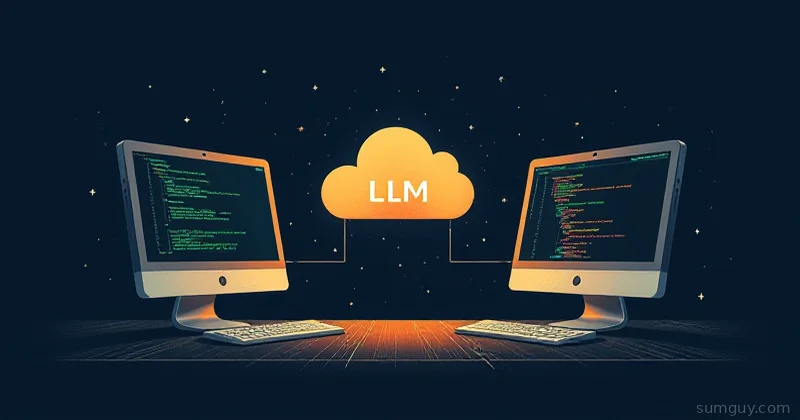
Local LLM coding is finally good enough to be your default. And with Continue.dev + Ollama, you can have autocomplete and chat AI running on your own machine for exactly zero dollars per month (minus your electricity bill).
I’m not saying it beats Claude in Claude. But for most coding tasks, like refactoring, scaffolding, tests, debugging, and explaining code, a local model running on your hardware is fast, free, and private. Your code never leaves your machine. No vendor lock-in. No surprise rate limits at 2 AM.
Let’s set it up.
What You’re Installing
Continue.dev is an open-source IDE extension that brings AI chat and autocomplete into VS Code, JetBrains IDEs, and others. It’s pluggable: you can point it at OpenAI, Anthropic, Ollama, or even a local vLLM server.
Ollama is a local LLM runtime. Install it, download a model, and it runs on your CPU or GPU without needing to futz with CUDA drivers or venv hell. ollama pull mistral and you have a 7B parameter model running in seconds.
Together: IDE + local inference = autocomplete that’s instant (no network latency), chat that never touches the cloud, and code that stays yours.
Step 1: Install Ollama
Head to https://ollama.com and grab the binary for your OS. It’s dead simple.
# macOS / Linux (via curl)curl -fsSL https://ollama.com/install.sh | sh
# Or download from https://ollama.com/download
Start the server:
ollama serveIt’ll default to http://localhost:11434. Leave that running in a terminal or systemd service.
Step 2: Pull Your First Model
Open a new terminal and grab a model. I recommend Mistral 7B for pure coding, it’s fast, decent at reasoning, and won’t nuke your RAM or GPU.
ollama pull mistralOther solid picks for coding:
ollama pull qwen3-coder: Purpose-built coding model, strong at this point and the one I’d reach for first nowollama pull gemma4: Google’s Gemma, good general reasoning and explanationsollama pull deepseek-coder-v2: Code-focused MoE, snappy for its qualityollama pull codellama: Meta’s older dedicated coding model, bigger (34B), slower but still around if you want it
For your first run, stick with mistral. It’s the Goldilocks of local coding models, not too slow, not too dumb.
Test it:
ollama run mistral "explain what a goroutine is"If you get text back, Ollama is working. Good. Kill it with Ctrl+C and move on.
Step 3: Install Continue in Your IDE
VS Code
- Open the Extensions sidebar (Ctrl+Shift+X / Cmd+Shift+X)
- Search for “Continue”
- Install the one from Continue, Inc (verified checkmark)
- Reload VS Code
JetBrains (IntelliJ, PyCharm, Goland, etc.)
- Preferences → Plugins → Marketplace
- Search “Continue”
- Install, restart IDE
It’ll add a chat sidebar and inline autocomplete.
Step 4: Configure Continue to Use Your Local Ollama
Continue reads from ~/.continue/config.yaml. (Heads up: older guides point you at config.json, that format is deprecated since Continue v1.0. YAML is the way now.) Create or edit it:
models: - name: Mistral Local provider: ollama model: mistral apiBase: http://localhost:11434 roles: - chat - autocompleteWhat’s happening here:
models: List of available models. You can have multiple (local + cloud).roles: Tells Continue what each model is for.chatpowers the sidebar;autocompletepowers inline suggestions. One model can do both, or you can split them (a small fast model for autocomplete, a bigger one for chat).
Save it. Continue will auto-reload.
Step 5: Fire It Up
Open a code file. You should see a Continue sidebar on the right (or press Ctrl+L in VS Code).
-
Chat: Type a question. “What does this function do?” It’ll send your code to the local Ollama instance and get back completions within 1 to 5 seconds (depending on model and hardware).
-
Autocomplete: Start typing. You’ll see inline suggestions pop up, press Tab to accept. This is running whichever model you assigned the
autocompleterole on every keystroke, so keep it light (smaller model = faster suggestions). -
Edit Commands: Highlight code and press Ctrl+K (or Cmd+K on Mac) to open the inline edit panel. “Add error handling” or “Convert to async/await”.
All of this is happening locally. No API keys. No telemetry. Just your code and a model running on your hardware.
Model Picks for Different Scenarios
Autocomplete (you need speed):
qwen3-coder(small variant): fast, code-aware completionsgemma4(E2B or E4B size): lighter, snappy, good enough for boilerplatecodellama:7b: purpose-built for code
Chat (you can wait a bit):
mistral: balanced, good reasoningqwen3-coder(larger variant): smarter, slower, strong at codecodellama:34b: overkill for most tasks, but it will find that edge case bug
The rule: Autocomplete should be fast (use 7B, 13B). Chat can be slower if it’s smarter (you can bump to 34B).
Hardware Reality Check
CPU only (no GPU):
- Expect ~1 to 2 tokens/sec with a 7B model
- Autocomplete will feel sluggish on older machines
- Chat is still usable; it just takes 10 to 30 seconds per response
- Solution: use
neural-chatoropenchat(faster), or drop tophi(tiny, snappy)
GPU (NVIDIA/AMD/Mac Metal):
- 7B model: ~20 to 40 tokens/sec
- 13B model: ~10 to 20 tokens/sec
- Autocomplete feels instant
- Chat feels native
Pro tip: The default ollama pull mistral already grabs a Q4-quantized build, which is plenty lean. If you want a different quant, pull an explicit tag like ollama pull mistral:7b-instruct-q4_0 (browse the available tags on the model’s page at ollama.com).
Comparing Chat vs. Autocomplete: When to Use What
Use autocomplete for:
- Boilerplate (imports, class stubs, repetitive patterns)
- Naming suggestions
- Bracket completion with context
- Tests that follow your existing patterns
Use chat for:
- Explaining unfamiliar code
- Debugging logic errors
- Refactoring strategies
- API/library questions
- Architecture decisions
The difference: Autocomplete is always on (slowing you down if it’s bad). Chat is pull-based (you ask when you’re stuck). If your autocomplete model is laggy, it’s worth dropping to a smaller model or disabling it.
Why Local Coding Is Finally Worth It
Three reasons this changed:
-
Model quality jumped. A year ago, 7B models were pretty dumb. Now? Mistral 7B is capable. You’re not sacrificing that much compared to cloud models.
-
Speed. No network round-trip. Autocomplete suggestions are instant. Chat responses start appearing immediately. It feels snappier than cloud.
-
The privacy angle is real. If you’re working on proprietary code, medical records, financial data, or anything IP-sensitive, shipping it to a third-party API is a non-starter. Local inference means zero data leave your machine.
The Gotchas
Memory usage. A 7B model takes ~4 to 5GB of RAM. A 13B model takes ~8 to 10GB. If you’re on a laptop with 8GB total, you’ll feel it. Quantization helps; smaller models help more.
No internet = no context. Local models can’t browse the web or check the latest docs. You’ll need to paste context into chat yourself. (This is also a feature if you don’t want your queries logged.)
Autocomplete can be annoying. If it’s wrong a lot, it kills your flow. Dial it in by picking the right model and tweaking the config to trigger less often (see Continue docs for the autocompleteOptions.debounceDelay setting).
Hallucinations are real. Local models are more likely to confidently spout fake code. Trust but verify. Always run tests before shipping.
The Real Talk
Could you just pay for Copilot or Claude? Sure. But if you’re building side projects, learning, or writing throwaway scripts, paying for cloud AI feels like overkill. It’s like subscribing to a premium car service when you drive 50 miles a week.
Local LLM coding isn’t a replacement for Claude if you’re shipping production code that needs airtight logic. But for the 80% case, scaffolding, refactoring, tests, explanations, a local model on your machine does the job, costs zero per month, and keeps your code off someone’s logging server.
Set it up tonight. Pull Mistral. Open Continue. Start a chat. You’ll be shocked how good it feels.
Next Steps
- Install Ollama from https://ollama.com
ollama pull mistral- Install Continue extension in your IDE
- Create
~/.continue/config.yaml(use the template above) - Start coding
If you hit issues, the Continue docs are solid: https://docs.continue.dev/
Enjoy your personal AI coding assistant. No subscription required.